Theme Extension Reference
This page is a reference manual for Theme App Extensions: configuration file, block types, Snippets, Schema, asset references, and localization. For the development workflow, see Create a Theme Extension.
Configuration File (shoplazza.extension.toml)
Every Theme App Extension must have a shoplazza.extension.toml file at its root:
id = "617189634367044154"
name = "my-theme-app-extension"
type = "theme"
Field description:
| Field | Description |
|---|---|
id | The unique ID of the extension. Auto-generated by the CLI when creating the extension. Do not modify manually. |
name | The extension name, used in CLI operations and the admin panel. |
type | Must be "theme", which identifies it as a Theme App Extension. |
App Block
An App Block injects inline content into a page section. Merchants can manually add App Blocks to supported sections in the theme editor's Apps area.
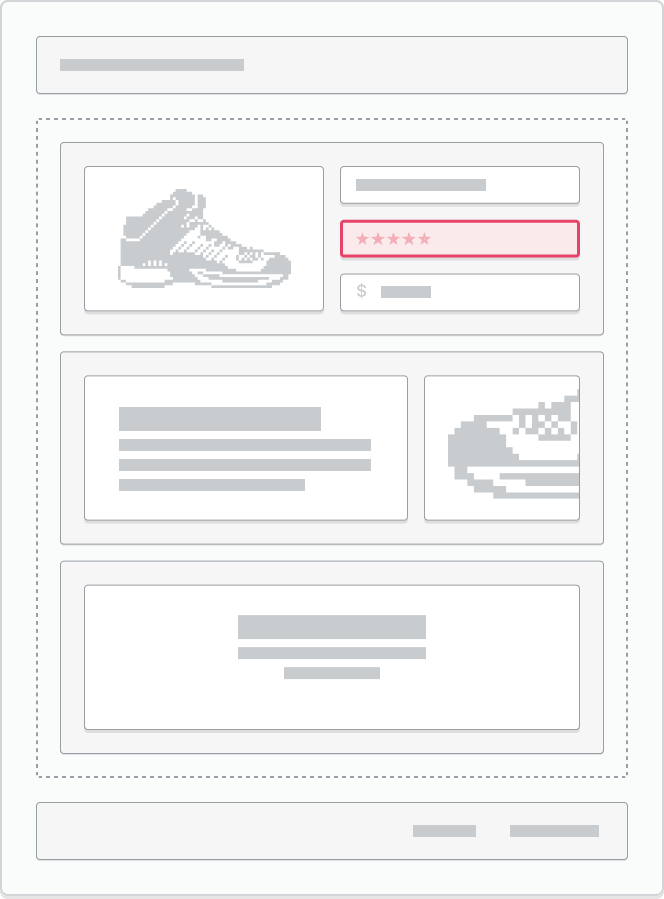
Use App Block when:
- You need a feature that depends on dynamic data, such as product ratings or review displays.
- Merchants may want to adjust the position of the feature on the page.
- The feature needs to span the full width of the page.
App Blocks are not automatically inserted into a theme after app installation. Merchants must add them manually in the theme editor.
App Block Theme Requirements
For an App Block to work correctly, the theme's sections must support and render blocks of the @app type.
Example: app_block.liquid
We'll walk through a complete example of an App Block that fetches and displays product rating metadata.
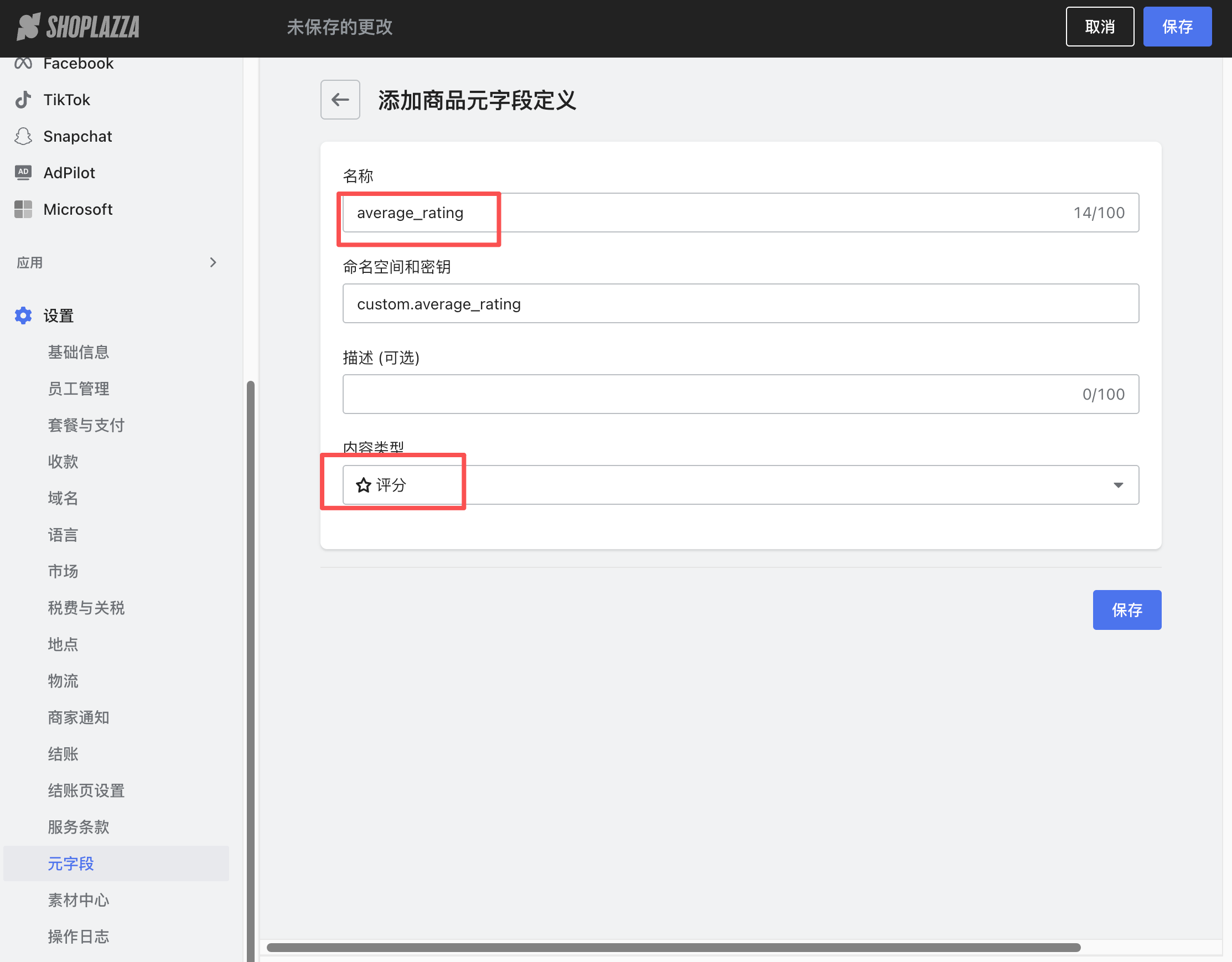
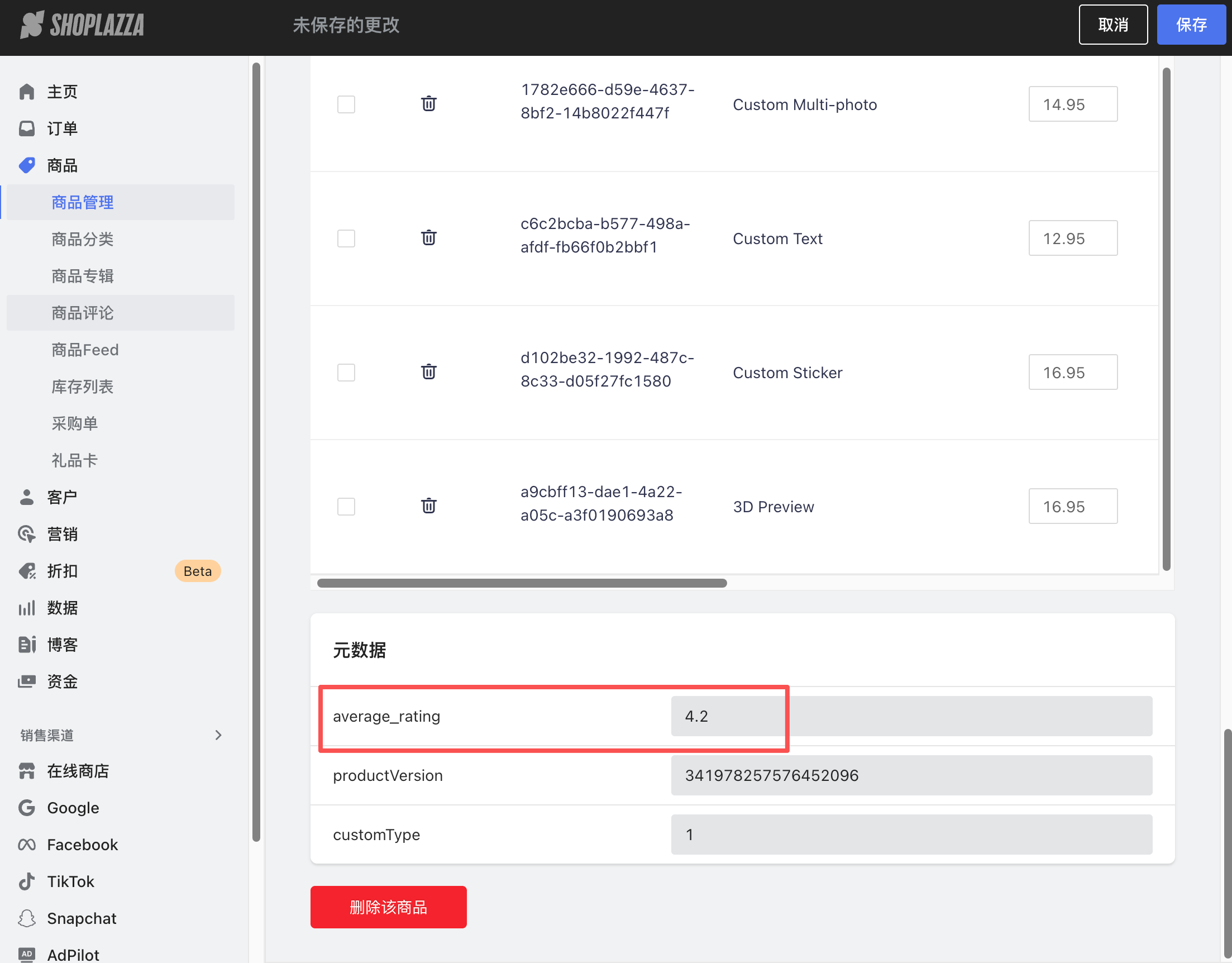
To allow the code to run correctly, you need to create average_rating metadata and set its value on the product in the admin:
-
Add the
average_ratingmetadata field.
-
Set the value of
average_ratingon the product.
-
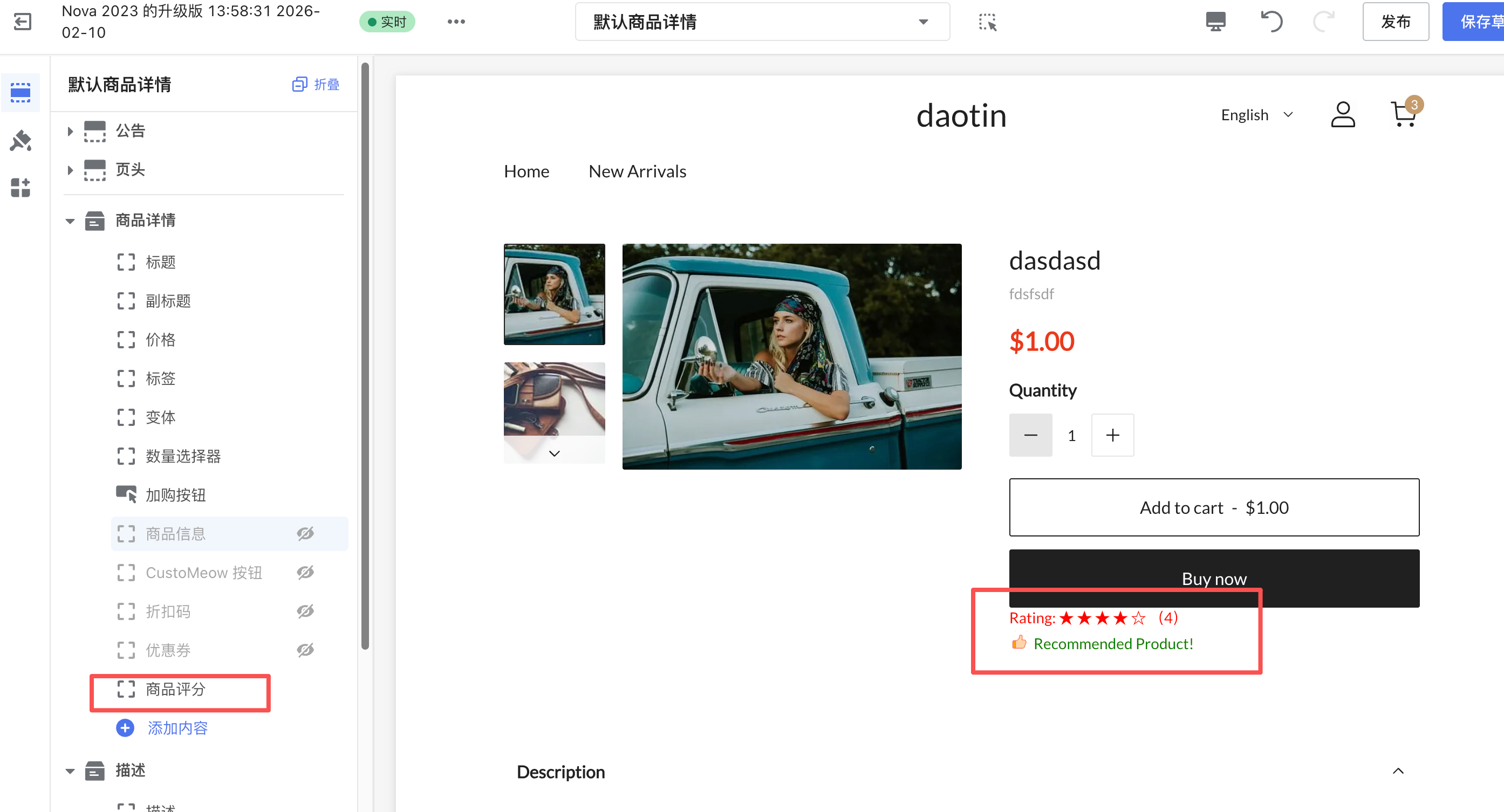
In the store theme editor, add the theme extension to the product details section.
Code (blocks/app_block.liquid):
{% use "app_block.css" %}
{%- comment -%} Default to 0 when the product has no average_rating to avoid nil rendering errors {%- endcomment -%}
{% assign avg_rating = product.metafields.custom.average_rating | metafield_text | default: 0 | plus: 0 | round %}

<span style="color:{{ block.settings.color }}">
  {% render 'rating_stars', rating: avg_rating %}
</span>

{% if avg_rating >= 4 %}
  <div class="recommendation-text">
    <img src="{{ 'thumbs_up.svg' | asset_abs_url }}" style="width:20px; height:20px;">
    {{ 'i18n.ratings.recommendation_text' | t }}
  </div>
{% endif %}

{% schema %}
{
  "name": {
    "en-US": "Product Rating",
    "zh-CN": "商品评分"
  },
  "settings": [
    {
      "type": "color",
      "id": "color",
      "label": {
        "en-US": "Star Color",
        "zh-CN": "星星颜色"
      },
      "default": "#ff0000"
    }
  ]
}
{% endschema %}
assets/app_block.css
.recommendation-text {
  color: green;
}
.myapp-floating-button-wrapper {
  color: red;
}
Visual result:
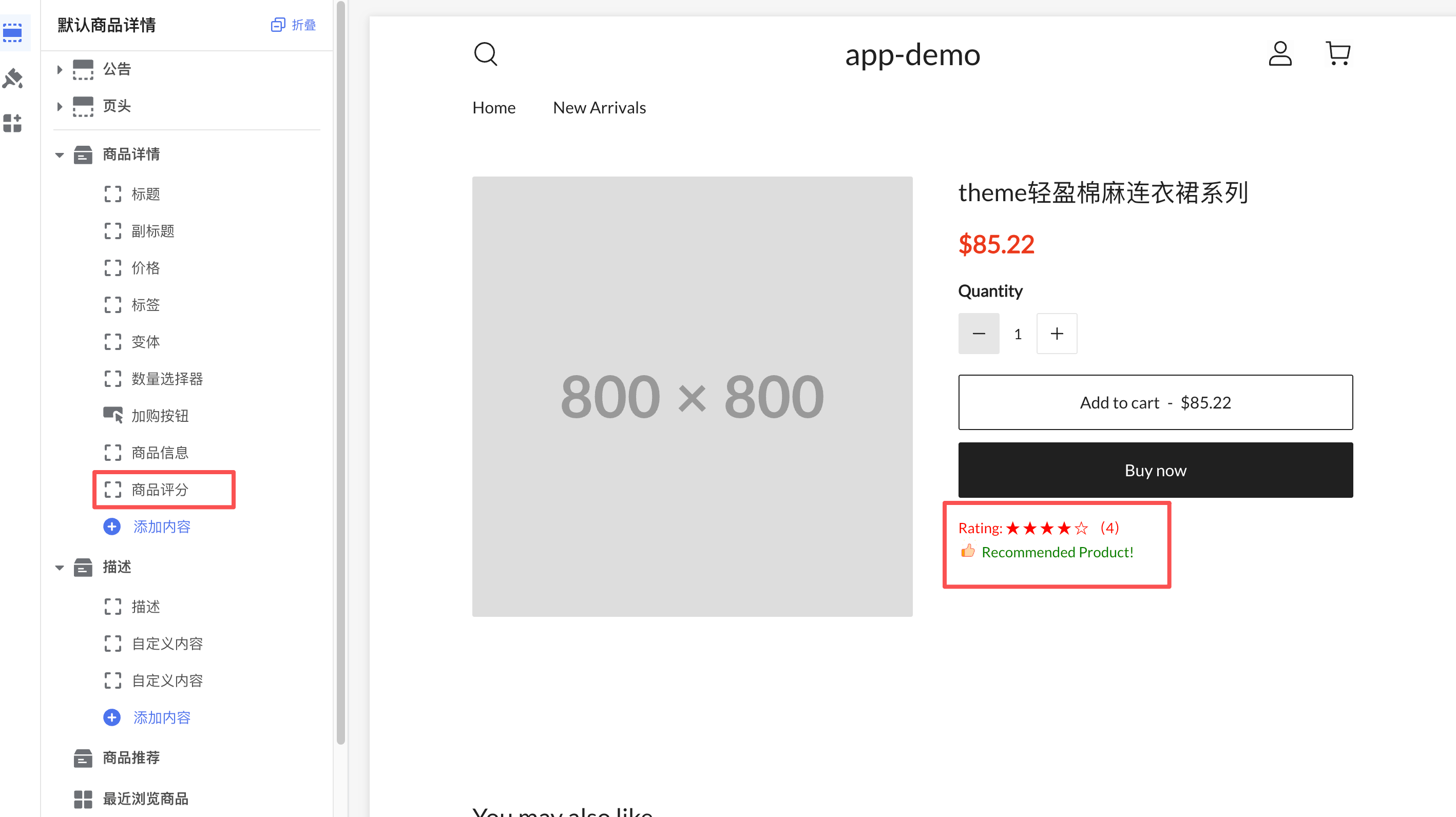
Code explanation:
{% use "app_block.css" %}– A Shoplazza-specific asset loader that includes CSS files from theassets/directory (see the "Asset Reference" section below).block.settings.color– Reads thecolorsetting defined in the Schema. Merchants can change it in the theme editor.{% render 'rating_stars', rating: avg_rating %}– Includes thesnippets/rating_stars.liquidsnippet and passes theratingparameter.{{ 'thumbs_up.svg' | asset_abs_url }}– Gets the absolute URL of an image in theassets/directory.{{ 'i18n.ratings.recommendation_text' | t }}– Localization: reads the translated text from the corresponding file inlocales/.- When
targetis not set in the Schema, the block defaults to an App Block (works within a section).
App Embed Block
An App Embed Block is used when there is no dedicated UI area, or when you need to add floating / overlay elements. Shoplazza renders and injects the App Embed Block before the closing </head> or </body> tag in the HTML.
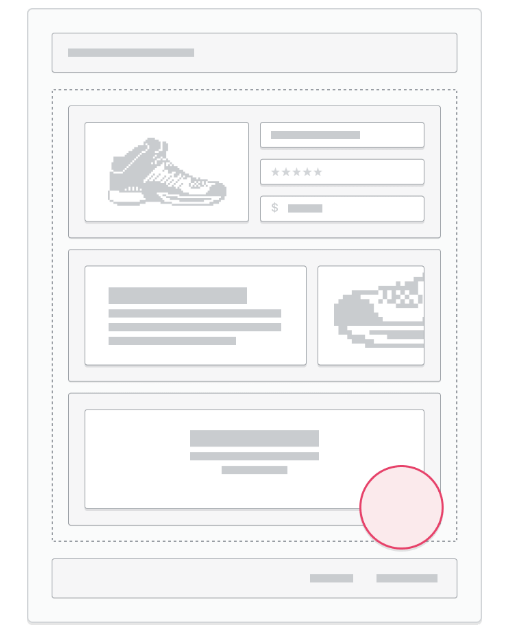
Specify the injection position using the target field in the Schema:
target value | Injection position |
|---|---|
"body" | Before the </body> tag (most common) |
"head" | Before the </head> tag |
App Embed Blocks are disabled by default after installation. Merchants must activate them manually in the theme editor under Theme Editor > App Management.
Use App Embed Block when:
- You need floating buttons, chat bubbles, or other floating components.
- You need to add SEO meta tags, analytics, or tracking scripts.
- You need a global feature that applies to all pages.
Example: app_embed_block.liquid
Below is a complete example of a floating button App Embed Block (blocks/app_embed_block.liquid). Recommended: Place CSS / JS in separate files inside the assets/ directory and include them via Liquid filters, rather than inlining <style> / <script> tags in the Liquid file. This improves reusability, CDN caching, and prevents duplicate loading (see the "Asset Reference" section below).
{{ 'floating_button.css' | asset_abs_url | stylesheet_tag }}
{{ 'floating_button.js' | asset_abs_url | script_tag }}

<div class="myapp-floating-button-wrapper">
  <button
    type="button"
    class="myapp-floating-button"
    style="
      background-color: {{ block.settings.background_color }};
      color: {{ block.settings.text_color }};
    "
  >
    <span>{{ block.settings.button_label }}</span>
  </button>
</div>

{% schema %}
{
  "name": {
    "en-US": "Floating Button",
    "zh-CN": "悬浮按钮"
  },
  "icon": "https://assets.shoplazza.com/oss/operation/a425c6e10e32f87a1e7271c9ed9347d8.svg",
  "target": "body",
  "settings": [
    {
      "type": "text",
      "id": "button_label",
      "label": {
        "en-US": "Button Label",
        "zh-CN": "按钮标签"
      },
      "default": "Help"
    },
    {
      "type": "color",
      "id": "background_color",
      "label": {
        "en-US": "Background Color",
        "zh-CN": "背景颜色"
      },
      "default": "#ff0000"
    },
    {
      "type": "color",
      "id": "text_color",
      "label": {
        "en-US": "Text Color",
        "zh-CN": "文字颜色"
      },
      "default": "#ffffff"
    },
    {
      "type": "text",
      "id": "link_url",
      "label": {
        "en-US": "Click URL",
        "zh-CN": "点击跳转链接"
      },
      "default": "https://www.shoplazza.dev"
    }
  ]
}
{% endschema %}
About the icon field: The example uses assets.shoplazza.com as a placeholder icon on Shoplazza's internal CDN. Replace it with your own icon URL when publishing.
assets/floating_button.css
.myapp-floating-button-wrapper {
  position: fixed;
  bottom: 24px;
  right: 24px;
  z-index: 9999;
}

.myapp-floating-button {
  display: inline-flex;
  align-items: center;
  justify-content: center;
  padding: 12px 16px;
  border-radius: 999px;
  font-size: 14px;
  font-weight: 600;
  text-decoration: none;
  box-shadow: 0 6px 18px rgba(0, 0, 0, 0.25);
  cursor: pointer;
  transition:
    transform 0.08s ease-out,
    box-shadow 0.08s ease-out;
}

.myapp-floating-button:hover {
  transform: translateY(-1px);
  box-shadow: 0 8px 24px rgba(0, 0, 0, 0.3);
}
assets/floating_button.js
document.addEventListener('DOMContentLoaded', () => {
  const btn = document.querySelector('.myapp-floating-button');
  console.log('Floating button loaded, button element:', btn);
  if (!btn) return;

  btn.addEventListener('click', event => {
    console.log('Floating button clicked');
    // The redirect URL can be passed via the schema's link_url setting; hardcoded here for illustration only
    window.open('https://www.shoplazza.dev', '_blank');
  });
});
Preview:
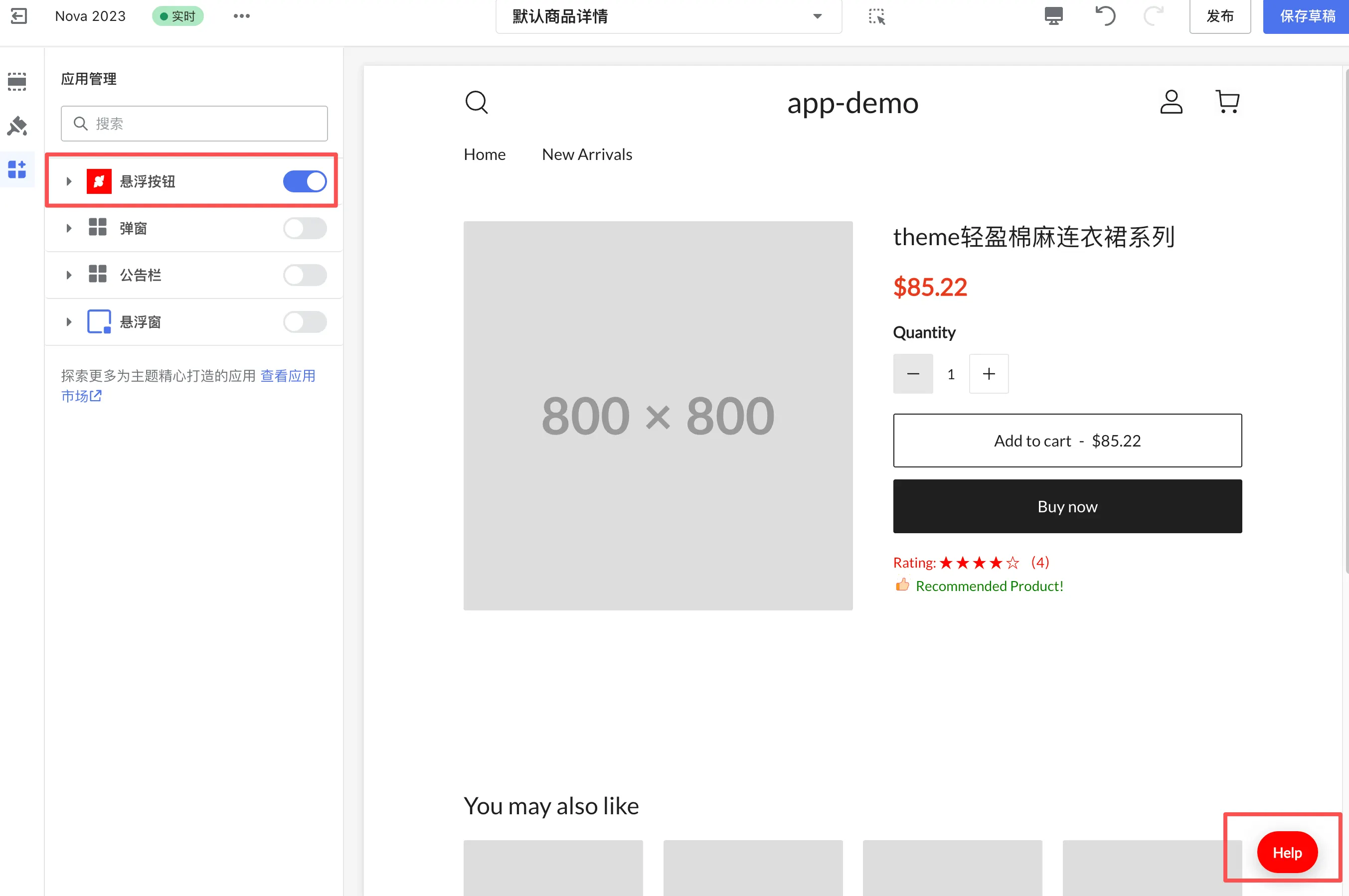
Code explanation:
-
"target": "body": Specifies an App Embed Block; content is injected before</body>. App Embed Block must explicitly settargetin the Schema. -
"icon": Icon displayed in the app embed list of the Theme Editor, using an absolute URL. -
block.settings.button_label, etc.: Reads the setting values configured by the merchant in the Theme Editor. -
Resource loading: CSS/JS is loaded via
asset_abs_url | stylesheet_tagandasset_abs_url | script_tag. If you must inline<style>/<script>in Liquid, wrap the JS logic in an IIFE to avoid global variable pollution—but it's recommended to use external files for caching and reusability.
Snippets
The snippets/ directory stores reusable Liquid code snippets that can be referenced in multiple blocks to avoid duplication.
Example: snippets/rating_stars.liquid
{%- if rating < 0 -%}
  {%- assign safe_rating = 0 -%}
{%- elsif rating > 5 -%}
  {%- assign safe_rating = 5 -%}
{%- else -%}
  {%- assign safe_rating = rating -%}
{%- endif -%}
{%- assign blank_stars = 5 | minus: safe_rating -%}
<span aria-label="{{ safe_rating }}/5 stars">
  {{ 'i18n.ratings.star_label' | t }}:
  {%- for i in (1..safe_rating) -%}
    ★
  {%- endfor -%}
  {%- for i in (1..blank_stars) -%}
    ☆
  {%- endfor -%}
</span>
Use if / elsif to clamp rating between 0 and 5 (Shoplazza Liquid does not provide at_least / at_most clamp filters; see Math filters for available math filters), preventing rendering issues when the rating is negative or exceeds 5. The outer <span aria-label> provides readable text for screen readers.
Reference this snippet in a block:
{% render 'rating_stars', rating: avg_rating %}
Or:
{% include 'rating_stars' %}
Difference between {% render %} and {% include %}:
{% render %} | {% include %} | |
|---|---|---|
| Variable scope | Independent scope; does not inherit external variables (must be passed explicitly as parameters) | Shares the external variable scope |
| Parameter passing | Passes via with, for, or named parameters | Directly accesses all external variables |
| Recommended scenario | Snippets that need explicit isolation and high reusability | Snippets that need to access contextual variables |
Schema Configuration
Every block's Liquid file must end with a {% schema %} ... {% endschema %} block, which defines the block’s name, type, and configurable settings. Each file can contain only one {% schema %} block.
Top-level Properties
| Property | Type | Required | Description |
|---|---|---|---|
name | Object | Yes | Block name displayed in the Theme Editor. Must provide both en-US and zh-CN languages. Should not exceed 25 characters. |
target | String | Required for App Embed Block | Injection position for the block. App Embed Block must be set to "body" or "head"; App Block does not need this. |
icon | String | No | Icon displayed for the block in the Theme Editor, using an absolute URL. Applies only to App Embed Block. |
settings | Array | No | List of customizable settings for the merchant, displayed when the block is selected in the Theme Editor. |
presets | Array | No | Default configuration |
tag | String | No | If set, wraps the block output with the specified HTML tag; defaults to div if not set. |
class | String | No | Additional CSS class name added to the wrapper tag. |
Multi-language format for name
name must be configured as a multi-language object containing en-US and zh-CN:
{
  "name": {
    "en-US": "Product Rating",
    "zh-CN": "商品评分"
  }
}
Settings Configuration
Structure of each setting object:
{
  "type": "color",
  "id": "color",
  "label": {
    "en-US": "Star Color",
    "zh-CN": "星星颜色"
  },
  "default": "#ff0000"
}
| Field | Required | Description |
|---|---|---|
type | Yes | Control type of the setting (see table below) |
id | Yes | Unique identifier of the setting, accessed in Liquid via block.settings.<id> |
label | Yes | Label displayed in the Theme Editor, must provide both en-US and zh-CN |
default | No | Default value of the setting |
Common type values:
| type | Description | Example default value |
|---|---|---|
text | Single-line text input | "Default text" |
textarea | Multi-line text input | "Multi-line text" |
color | Color picker | "#ff0000" |
select | Dropdown selection (requires options field) | "option_value" |
checkbox | Checkbox | true |
range | Slider range selection (requires min, max, step fields) | 50 |
image_picker | Image picker, allows merchants to upload or select images from the admin | — |
Access settings in Liquid:
{{ block.settings.color }}
{{ block.settings.button_label }}
{{ block.settings.background_color }}
Resource References
Method 1: {% use %} tag (recommended for loading CSS/JS)
{% use %} is a Shoplazza Liquid tag that loads CSS or JS files from the assets/ directory in a block:
{% use "app_block.css" %}
{% use "app_block.js" %}
Features:
-
If the same file is referenced by multiple blocks on the page, it is loaded only once, avoiding duplication.
-
CSS files are automatically injected as
<link>tags in the<head>. -
JS files are loaded asynchronously.
Method 2: asset_abs_url filter (for referencing images and other paths)
For dynamically referencing resource paths in HTML attributes (e.g., image src), use the asset_abs_url filter to get the absolute URL of the resource:
<img src="{{ 'thumbs_up.svg' | asset_abs_url }}">
Combine with other filters:
{{ 'app_embed_block.css' | asset_abs_url | stylesheet_tag }}
{{ 'app_embed_block.js' | asset_abs_url | script_tag }}
When referencing resources in the assets/ directory within a Theme App Extension, you must use asset_abs_url instead of asset_url or shoplaza_asset_url used in theme development. asset_abs_url generates a unique path based on the extension ID and file hash, preventing naming conflicts between different extensions.
Resource files (images, CSS, JS, etc.) referenced via asset_abs_url must not contain hyphens -. Use underscores _ instead, e.g., thumbs_up.svg, app_block.css. Otherwise, the remote resource URL cannot be generated.
Applicable scenarios for both methods:
| Scenario | Recommended method |
|---|---|
| Load CSS/JS files in a block | {% use "app_block.css" %} |
| Reference images or other resource paths in HTML attributes | {{ 'thumbs_up.svg' | asset_abs_url }} |
Dynamically generate <link> or <script> tags | {{ 'app_block.css' | asset_abs_url | stylesheet_tag }} |
Internationalization (locales)
The locales/ directory stores storefront translation files for multiple languages. File naming format: {language_code}.json (e.g., en-US.json, zh-CN.json, zh-TW.json). The platform supports 15 locales (including Taiwan) and 14 country-specific language files.
File format
locales/en-US.json:
{
  "ratings": {
    "star_label": "Rating",
    "recommendation_text": "Recommended Product!"
  }
}
locales/zh-CN.json:
{
  "ratings": {
    "star_label": "评分",
    "recommendation_text": "推荐产品!"
  }
}
Using translations in Liquid
Use the t filter to reference translation keys. Keys use dot-separated paths with the i18n. namespace prefix:
{{ 'i18n.ratings.star_label' | t }}
{{ 'i18n.ratings.recommendation_text' | t }}
The platform automatically loads the corresponding translation text from the language file based on the current store language.
Merchants cannot edit the storefront multilingual text of a Theme App Extension in the Theme Editor; these texts are maintained exclusively by developers in the locales/ files.