Guide merchants to install or enable your Theme App Extension via deep link
This article explains how to construct a Deep Link for your Theme App Extension: when a merchant clicks the link, they are taken directly to the theme editor, and your extension is automatically placed in the specified position (App Block) or navigated to the toggle to enable it (App Embed), eliminating the manual steps of "finding, adding, and adjusting position in the theme editor."
This article assumes you already know how to write a Theme App Extension. If you are not familiar with the extension code structure and Schema, first read Create a Theme Extension and Theme Extension Reference.
Theme App Extensions come in two types, each with a corresponding deep link for guidance:
| Extension Type | Merchant Location | Guidance Goal | Which Deep Link to Use |
|---|---|---|---|
| App Block (basic extension) | Manually added in the theme editor to a section that supports @app | Automatically insert into a specific page/section/block position | …/admin/card?template=…&addAppBlockId=…&target=… |
| App Embed (embedded extension) | Theme editor → Theme settings → App embeds, disabled by default, needs manual enabling | Navigate to the App Management panel, locate and guide to enable the toggle | …/admin/card?context=apps&activateAppBlockId=… |
Use Cases
When to provide such guidance to merchants:
- After merchants install your app, they don't know they need to go to the theme editor to add/enable the extension, resulting in the extension not actually being active and low usage.
- Version upgrades: include a "configure" entry in the app admin that takes merchants to the correct installation/enable position with one click.
Extension Identifier ${appId}/${blockName}
Both types of deep links use an extension identifier in the format ${appId}/${blockName}:
${blockName}: The filename of the corresponding block in theblocks/directory (without.liquid). For example,blocks/t0609.liquid→t0609. Determined locally.${appId}: The handle identifier assigned to your app by the platform (e.g.,painterb,public,app-add-to-cart). It is not in your project files and must be retrieved from the platform.
How to Obtain: Get the type field from an API
Each block's type field in the API response is the full resource identifier, in the form shoplazza://apps/{appId}/blocks/{blockName}/{instance_id}. The API to fetch differs by extension type:
App Embed (embedded extension) — Open "Theme editor → App management" and watch the console request:
https://{store_domain}/admin/api/theme-extensions/available-blocks?operation=appEmbeds&limit=25
App Block (basic extension) — Open the theme editor page and watch the console request:
https://{store_domain}/admin/api/theme-extensions/available-blocks?template=index&limit=100
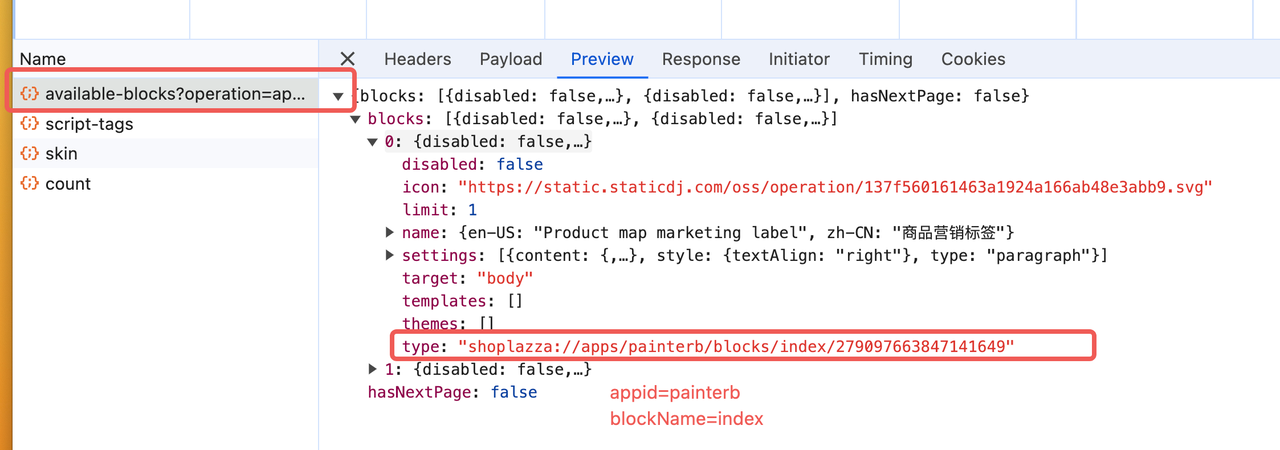
Find the item corresponding to your extension in the response (identify by name) and get its type. For example:
{
  "name": { "en-US": "t0609(dev)", "zh-CN": "t0609(开发)" },
  "type": "shoplazza://apps/custom-2386979-653920915276443053/blocks/t0609/653920915276443053"
}
Remove the shoplazza://apps/ prefix and the trailing instance id to obtain ${appId}/${blockName}:
type Resource Identifier | Derived ${appId}/${blockName} |
|---|---|
shoplazza://apps/custom-2386979-653920915276443053/blocks/t0609/653920915276443053 | custom-2386979-653920915276443053/t0609 |
shoplazza://apps/public/blocks/video_hero/41113124874493855 | public/video_hero |
shoplazza://apps/painterb/blocks/strengthen_trust/279078739021670375 | painterb/strengthen_trust |
shoplazza://apps/app-add-to-cart/blocks/add_to_cart/279078739021670375 | app-add-to-cart/add_to_cart |
Throughout this article, {store_domain} represents the merchant's store admin domain (e.g., your-shop.myshoplaza.com). Replace it with the merchant's actual domain when constructing the link.
Scenario A · Guide to Install App Block (Basic Extension)
App Block requires merchants to manually add it to a section on the page. With the deep link below, when merchants click it, they are taken to the theme editor, and the extension is automatically inserted at the position you specify, prompting them to save/preview.
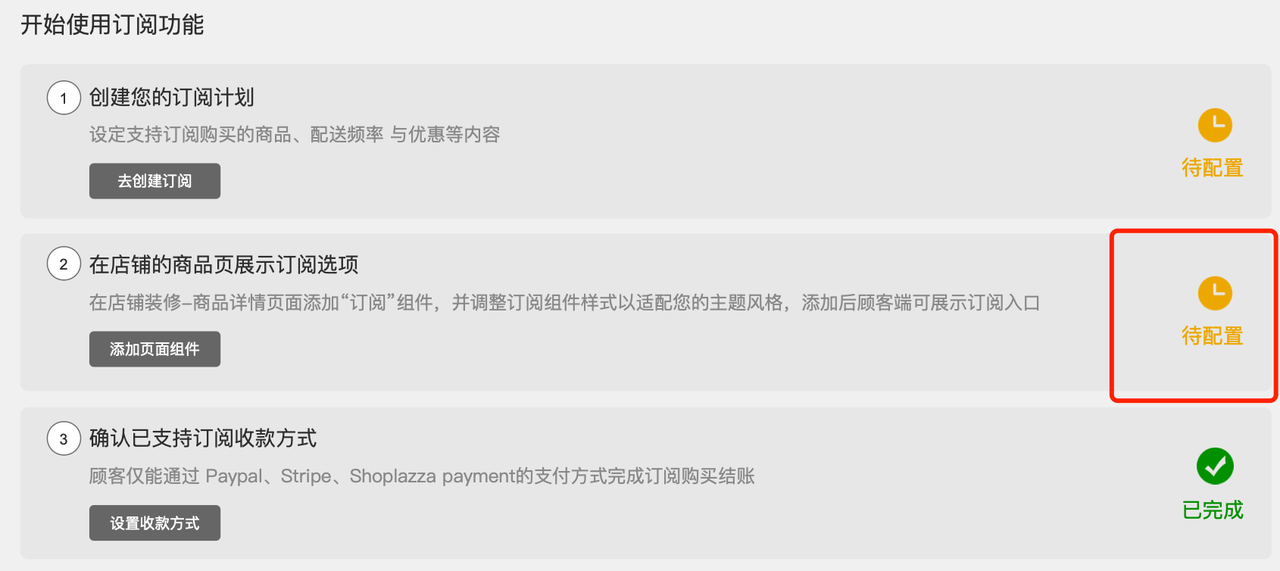
URL Basic Structure
https://{store_domain}/admin/card?template=${template}&addAppBlockId=${appId}/${blockName}&target=${target}
Parameters
| Parameter | Meaning | Value Description | Required |
|---|---|---|---|
template | Target page template | Template name from the template value table in the appendix (e.g., product, index) | Yes |
addAppBlockId | Extension ID to insert | ${appId}/${blockName} (see above) | Yes |
target | Insertion target position | Two formats: newAppsSection, or sectionType:…/blockType:…/pos:…/toType:… | Yes |
sectionType | Target section type | Supports comma-separated multiple values for compatibility with different themes (e.g., product,product_detail); only theme sections are supported, not extension/plugin sections | Required when inserting into a specific section |
blockType | Target block type | Supports comma-separated multiple values (e.g., buy_buttons,buttons); only block types built into the section | Required when inserting into a specific block |
toType | Insertion type | section (as a new section) or block (as a block within a section). Defaults to section if omitted | Required when the target section exists but the target block does not |
pos | Insertion position | Default 1 (below the anchor point); -1 (above the anchor point) | No |
is_auto_close | Close the editor after installation and auto-focus back to the original page | Use with window.open to open the editor; call window.close() on return | No |
desc | Prompt text in the post-insertion guide dialog | Separate multiple with , and map one-to-one with addAppBlockId | No |
is_block_when_error | Whether to block subsequent insertions if one item fails during batch insertion | true to block; default is not to block | No |
Below are three usage examples, from coarsest to finest insertion precision.
Usage ①: Insert as a New Section into Any Page
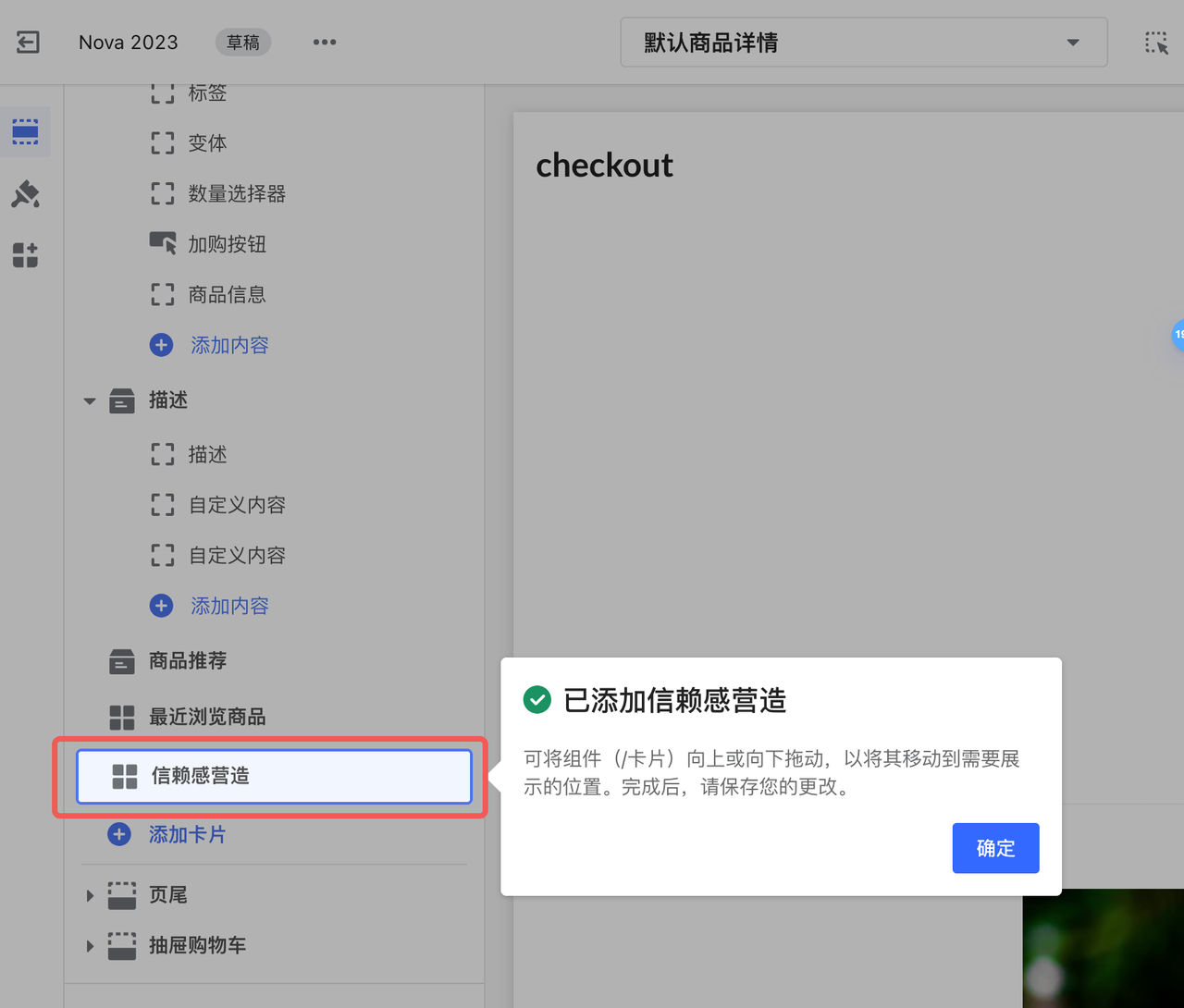
Insert it as a new section into the target page without specifying a specific section (target=newAppsSection).
https://{store_domain}/admin/card?template=product&addAppBlockId=custom-2386979-653920915276443053/t0609&target=newAppsSection
The target template must be within the theme's supported templates. If it is not, the link defaults to the homepage without insertion or prompting.
Usage ②: Insert into a Specified Target Section
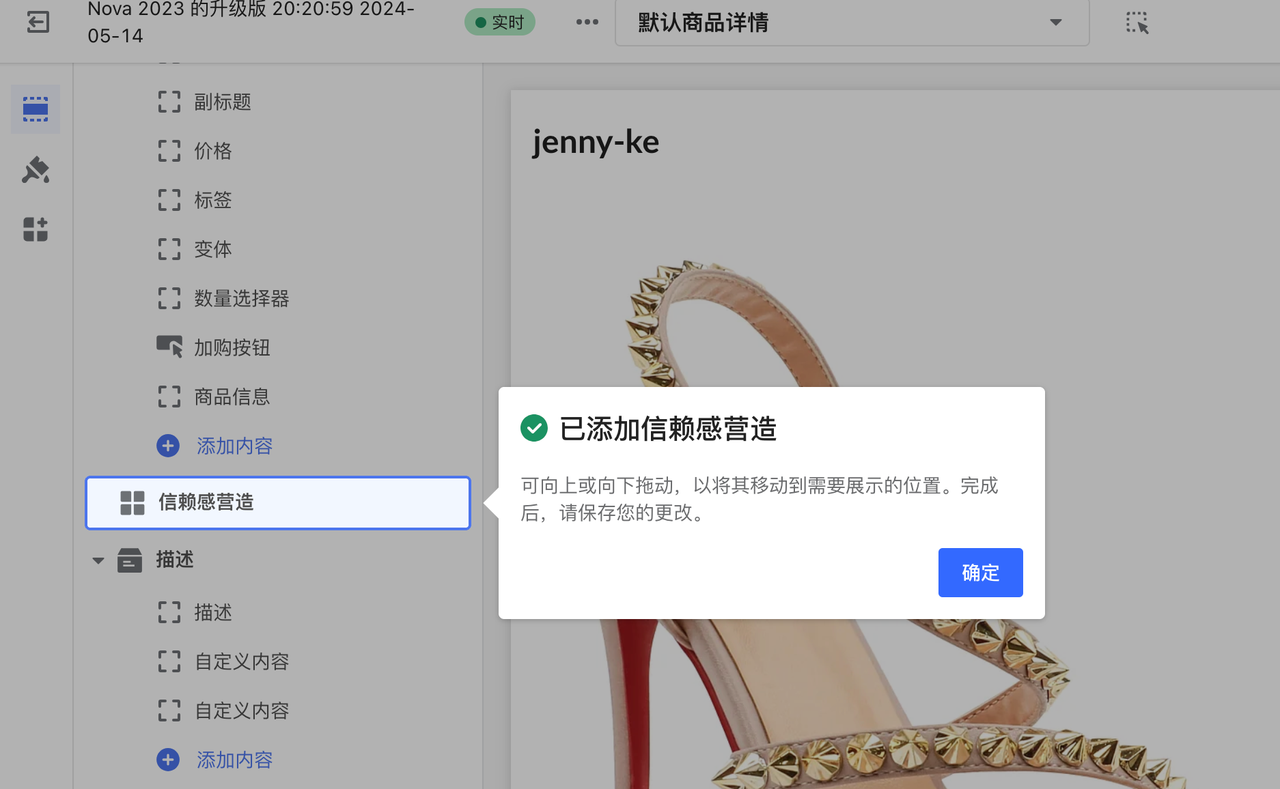
Use sectionType to locate a specific section, and toType to decide whether to insert it as an adjacent section or inside the section as a block.
https://{store_domain}/admin/card?template=${template}&addAppBlockId=${appId}/${blockName}&target=sectionType:${sectionType}/pos:${pos}/toType:${toType}
- Insert below the "Product details" section (as a section):
https://{store_domain}/admin/card?template=product&addAppBlockId=custom-2386979-653920915276443053/t0609&target=sectionType:product_detail/pos:1/toType:section
- Insert above the "Product details" section (as a section): change
posto-1. - Insert inside the "Product details" section (as a block): change
toTypetoblock.
https://{store_domain}/admin/card?template=product&addAppBlockId=custom-2386979-653920915276443053/t0609&target=sectionType:product_detail/toType:block
- When inserting as a section and the target section exists,
postakes effect (above/below), defaulting to below. - When inserting as a block but the target block does not exist, position information is not effective, and it defaults to the last position in the section's block list.
- If the target block does not exist, you must specify
toType, otherwise the insertion will not occur. - If the specified target section does not exist, it defaults to "insert as a new section into the specified page."
Usage ③: Insert Adjacent to a Specified Block
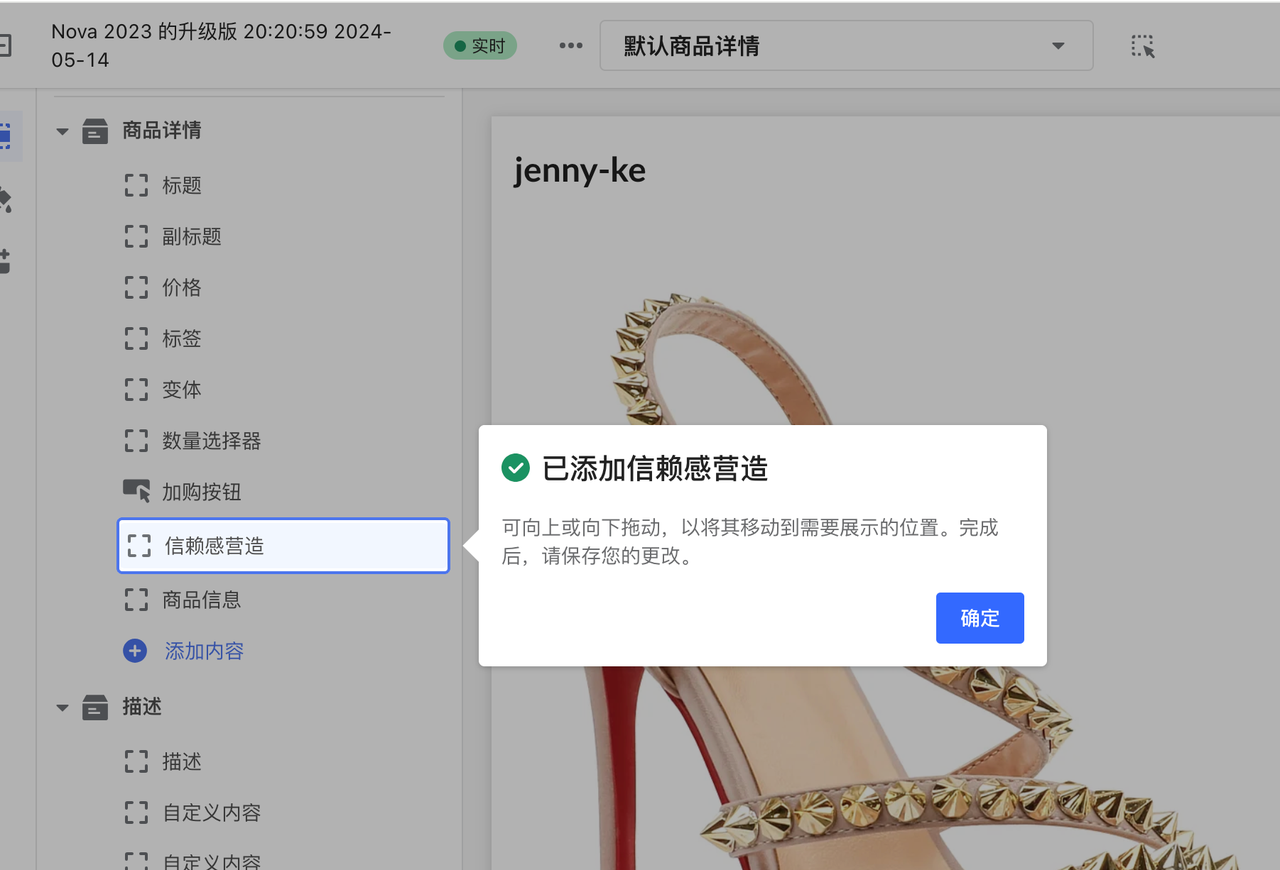
Further specify blockType to insert the extension immediately above or below a specific block.
https://{store_domain}/admin/card?template=${template}&addAppBlockId=${appId}/${blockName}&target=sectionType:${sectionType}/blockType:${blockType}/pos:${pos}
- Insert above the "Buy buttons" block in "Product details":
https://{store_domain}/admin/card?template=product&addAppBlockId=custom-2386979-653920915276443053/t0609&target=sectionType:product_detail/blockType:buy_buttons/pos:-1
- Insert below the "Buy buttons" block: change
posto1.
- When the target block exists, position is effective:
1for below,-1for above. - When specifying a block, the default insertion type is
block, sotoTypeis not effective. - If the target block has been deleted by the merchant, it defaults to the last position in the target section's block list.
Batch Insert Multiple App Blocks
addAppBlockId, target, template, and desc all support comma-separated multiple values (English commas), mapped one-to-one. The editor inserts them one by one in queue, and the merchant can use "Previous / Next" to page through and confirm.
https://{store_domain}/admin/card?addAppBlockId=appA/block1,appB/block2&target=sectionType:product_detail/toType:block,newAppsSection&template=product,product&desc=Component A added,Component B added
- Use
descto set a separate success message for each inserted item. - Adding
is_block_when_error=truewill stop processing subsequent items if any item in the queue fails; by default, no interruption occurs, and merchants can continue with "Next".
Insertion Rules and Boundaries (Applicable to All Usages Above)
The platform locates by "page → section → block" hierarchy step by step. If not found, it falls back according to the rules below. If there are multiple matching anchor positions, the lowest one is used as the reference.
| Insertion Action | Behavior |
|---|---|
| Insert block (same for fixed sections like header, footer) | Anchor position exists → insert at anchor; No anchor position → insert at the end of the current section; Target section does not exist → do not insert |
| Insert section (card) | Anchor card position exists → insert at anchor; No anchor position → insert at the bottom of configurable sections on the current page; Not found across the entire page → do not insert and show no prompt |
Additionally, some automatic behaviors apply:
- Cross-page jump: When the page specified by
templateis not the current page, the editor will first jump to the target page and then perform the insertion. - Fallback to bottom: If the target section cannot be found but the page hasn't reached the maximum number of sections, the component block is inserted at the bottom of the page, and merchants are prompted to drag it into place.
@appnested lookup: If the target section does not directly support@apptype blocks, the system recursively searches the first child section that supports app insertion.
Error Codes and Prompts
When an insertion fails, the editor displays a corresponding error message:
| Error Code | Meaning | Prompt Text |
|---|---|---|
TEMPLATE_NOT_MATCH | The current theme does not have a page corresponding to the target template. | The current theme does not have the "{page}" template. The feature was not added. Please contact customer service for confirmation. |
APP_NOT_FOUND | The target App cannot be found in the list of available components. | The current theme does not have the "{app}" app component block. The feature was not added. Please contact customer service for confirmation. |
NOT_MATCH_TARGET | The target format is incorrect or no insertion position was matched. | The current theme does not have the target position. The app component block was not added. Please contact customer service for confirmation. |
MAX_BLOCK_LIMIT | The target area has reached the maximum number of blocks defined in the schema. | The target area has reached the maximum number of cards. The card was not added. Please contact customer service for confirmation. |
When constructing a deep link, parameter values containing special characters (e.g., target) must be encoded with encodeURIComponent.
Scenario B · Guiding Activation of App Embed
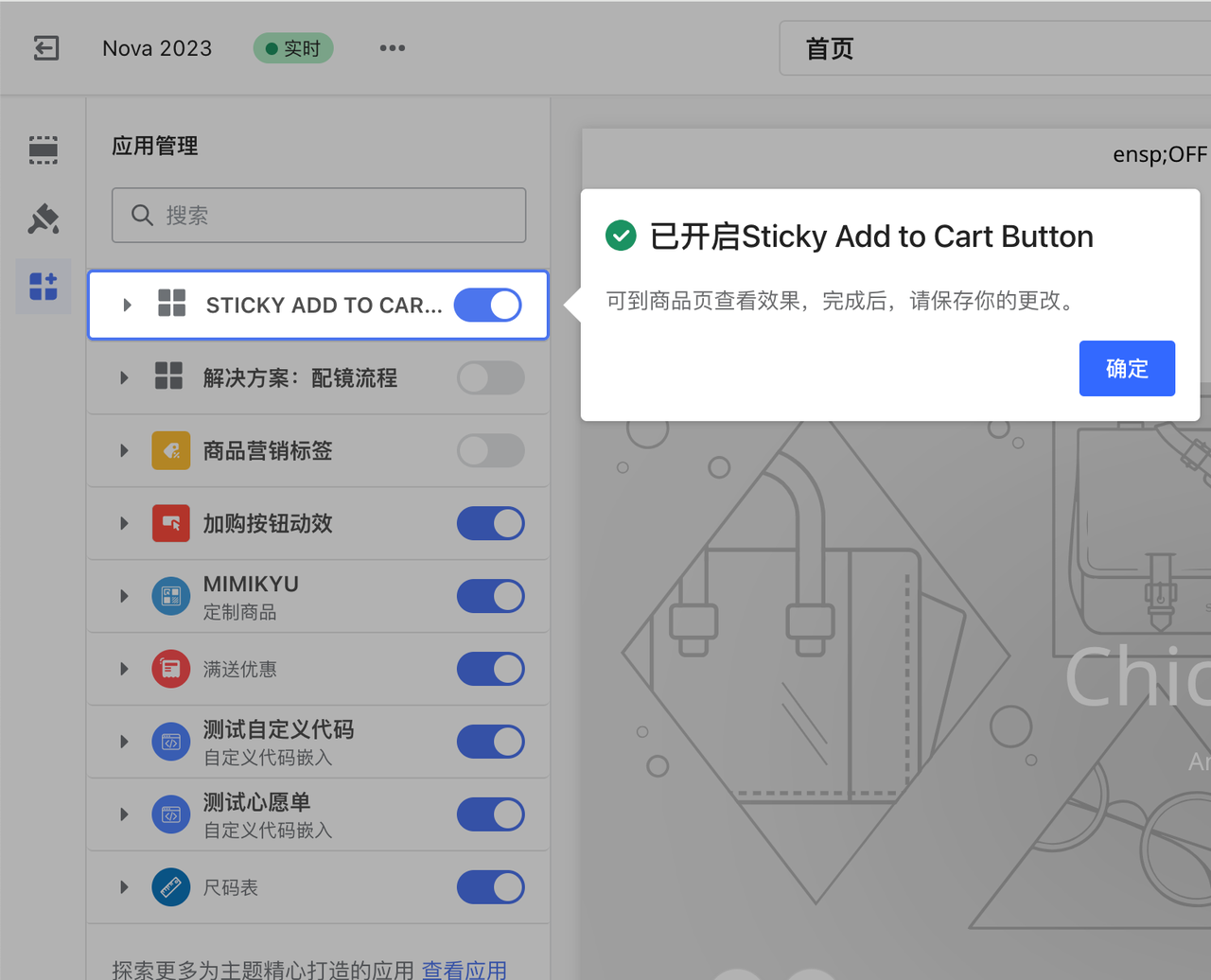
App Embed is disabled by default after installation. Merchants need to manually enable it under "Theme Settings → App Embeds". Use the following deep link to take merchants directly to the App Management panel, locate your embed extension, and guide them to toggle the switch.
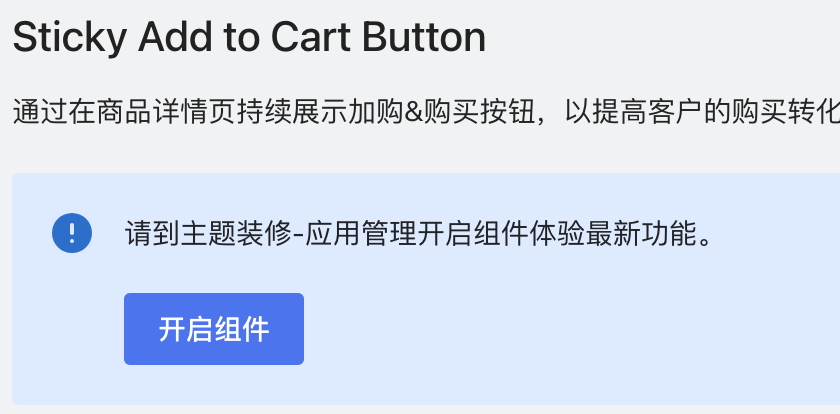
URL Format
https://{store_domain}/admin/card?context=apps&activateAppBlockId=${appId}/${blockName}
Example (to activate the "Add to Cart" embed extension):
https://{store_domain}/admin/card?context=apps&activateAppBlockId=app-add-to-cart/add_to_cart
Parameter Description
| Parameter | Meaning | Value Description |
|---|---|---|
context | Sidebar context of the theme editor | Fixed to apps, which navigates to the "App Management" panel |
activateAppBlockId | ID of the extension to activate | ${appId}/${blockName}; App Management only supports embed extensions (App Embed) |
Custom Activation Prompt Text (guidePageName)
After a merchant clicks the activation deep link, the theme editor (platform side) shows a confirmation popup. The text structure follows a fixed template with only two slots controlled by the extension:
- Title:
{name} Enabled—{name}is taken from the block schema'sname. - Body:
Check the effect on {guidePageName}, then save your changes.—{guidePageName}defaults tothe product page, and can be overridden by the extension.
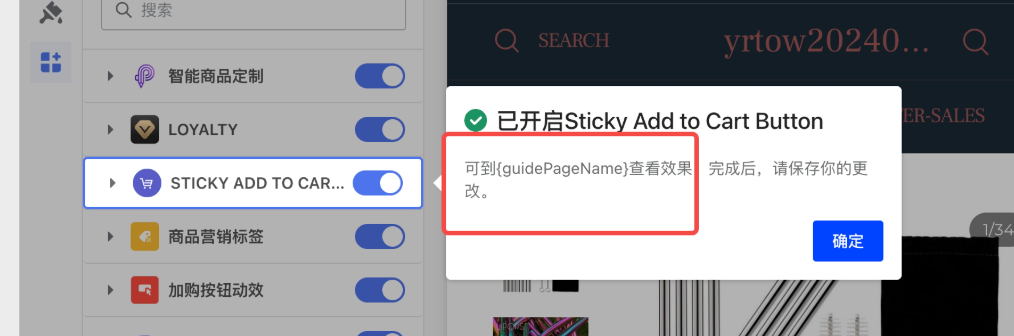
To customize the page name in the body, add a multilingual object guidePageName (written like name) in the block's {% schema %}:
{
  "name": { "en-US": "v1-te-embed(dev)", "zh-CN": "v1-te-embed(开发)" },
  "target": "body",
  "guidePageName": { "en-US": "checkout page", "zh-CN": "结账页" },
  "settings": []
}
After redeploying, the popup body will read: Check the effect on checkout page, then save your changes.
- If
guidePageNameis not configured, the body defaults tothe product page. - Apart from these two slots, the rest of the prompt text ("Check the effect on … then save your changes.") is hardcoded by the theme editor and cannot be modified by the extension.
Checking Whether an Extension is Installed
Before showing "Pending Configuration / Installed" status in your app backend and deciding whether to display an entry point (deep link) to the merchant, first check if the extension is already installed/enabled in the theme. The detection method differs by extension type:
| Extension Type | Detection Method |
|---|---|
| App Block (basic extension) | Call the themes/card-exist API to check if the section/block card exists on the page template |
| App Embed (embed extension) | Fetch the theme's settings_data.json, look up the match in current.app_embeds, and check the disabled field |
App Block: Using the card-exist API
App Blocks are section/block cards added to page templates. The themes/card-exist API checks whether a specific section/block card exists on a page template.
GET https://{store_domain}/admin/api/themes/card-exist?templates=...&ext_app_id=...&ext_app_block=...
Parameters:
| Parameter | Required | Meaning |
|---|---|---|
templates | Yes | Page template names, separated by commas (e.g., product, global_sections) |
theme_id | No | Store theme ID (defaults to current theme) |
card_name | No | Card name |
ext_app_id | No | Extension ID |
ext_app_block | No | Extension card name (blockName) |
show_more_info | No | Whether to return template details |
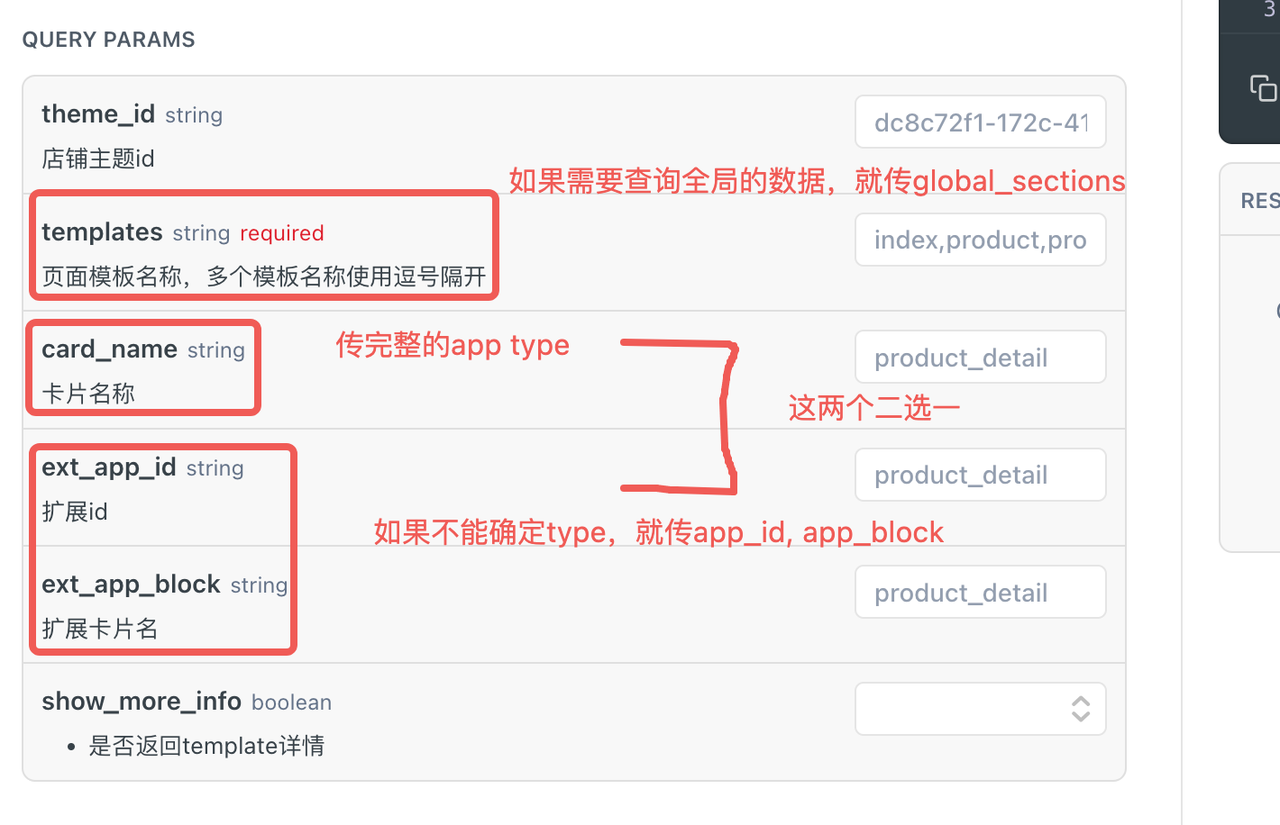
The response is grouped by templates, each group containing block_exist / section_exist. If either is true, it is considered installed:
const fetchCardExist = async () => {
  const { data } = await request.get('themes/card-exist', {
    params: {
      templates: 'global_sections',
      ext_app_id: 'Geolocation',
      ext_app_block: 'multi_market',
    },
  });
  const info = data?.template_info?.global_sections;
  return info?.block_exist || info?.section_exist;
};
card-exist is an internal backend API under /admin/api/. When your app runs inside the merchant admin, the request base is already the current store's admin domain, so you can use the relative path themes/card-exist without hardcoding the domain. This API only covers App Blocks; the enabled status of App Embed cannot be queried here (see next section).
App Embed: Reading settings_data.json and Matching
There is no dedicated API for App Embed. The enabled status is recorded in the published theme's settings_data.json. Workflow: fetch the configuration → find the entry in current.app_embeds by extension identifier → check disabled.
Step 1: Get the theme_id of the currently published theme
GET https://{store_domain}/openapi/2025-06/themes/default-theme
Step 2: Fetch the theme's settings_data.json
GET https://{store_domain}/openapi/2025-06/themes/{theme_id}/doc?type=config&location=settings_data.json
(This is an OpenAPI open endpoint, requiring an access token + theme read scope.)
Step 3: Match in current.app_embeds
app_embeds uses appId as the key, and the value is an array of embed blocks for that app. Each entry includes type and disabled:
{
  "app_embeds": {
    "custom-2386979-653765666276388655": [
      {
        "disabled": false,
        "settings": [],
        "type": "shoplazza://apps/custom-2386979-653765666276388655/blocks/v1-te-embed/653765666276388655"
      }
    ]
  }
}
Match type against ${appId}/${blockName} and check disabled:
function isAppEmbedEnabled(settingsData, appId, blockName) {
  const entries = settingsData.current?.app_embeds?.[appId] ?? [];
  const targetType = `shoplazza://apps/${appId}/blocks/${blockName}`;
  return entries.some(
    (e) =>
      e?.disabled === false &&
      typeof e?.type === 'string' &&
      e.type.includes(targetType)
  );
}
// isAppEmbedEnabled(data, 'custom-2386979-653765666276388655', 'v1-te-embed') === true
Judgment:
- If the
appIdkey does not exist → Not installed. - If the key exists but
disabled: true→ Installed but not enabled. - If the key exists and
disabled: false→ Enabled.
You must match type by blockName, not just by the appId key — a single app may have multiple embed blocks (multiple entries under the same appId array).
Appendix: template Value Table
The template parameter corresponds to the page templates in the merchant's store. Common values are listed below (sorted by frequency of use):
| Page | template | Loaded template file |
|---|---|---|
| Home | index | index.liquid |
| Product Detail | product | product.liquid |
| Collection (Category) Detail | collection | collection.liquid |
| Custom Page | page | page.liquid |
| Cart | cart | cart.liquid |
| Search | search | search.liquid |
| Blog Article | article | article.liquid |
| Blog Collection | blog | blog.liquid |
| 404 | 404 | 404.liquid |
| Password Page | password | password.liquid |
| Account | customers/account | customers/account.liquid |
| Order List | customers/order | customers/order.liquid |
| Order Detail | order | order.liquid |
| Login | login | customers/login.liquid |
| Register | register | customers/register.liquid |
| Checkout | checkout | chick-next implementation |
| Payment Success Page | checkout | order_status.liquid |