CLI quick start
Shoplazza CLI is a command-line tool that helps you build Shoplazza themes. It lets you preview, test, and share changes to themes while developing locally.
This tutorial covers both scenarios with one CLI workflow: creating a brand-new theme from a reference theme, and customizing an existing merchant theme. Pick the path that fits your goal in Step 2; the remaining steps are shared.
What you'll learn
After you've finished this tutorial, you'll have accomplished the following:
- Set up your local development environment
- Got theme code, either by cloning Nova 2023 or downloading a merchant's theme
- Previewed your changes with the store's data
- Pushed theme code to a store and published the theme
Requirements
- The URL of the store that you want to work on, such as
your-store.myshoplaza.com.
Installation requirements for Shoplazza CLI
The requirements to install and run Shoplazza CLI depend on your computer:
- Node.js 16.0.0 or higher
Workflow overview
Step 1: Install Shoplazza CLI
Follow the instructions below to install Shoplazza CLI on macOS, Windows, or Linux.
npm install -g shoplazza-cli
Step 2: Get your theme code
Choose the path that matches what you want to do.
Option A: Create a new theme
Use shoplazza themes init to clone the Nova 2023 Git repository to your local machine.
- In a terminal, navigate to the working directory where you want to clone Nova 2023.
- Enter the following command:
shoplazza themes init --name my-theme
- The theme is cloned into a folder named
my-theme. Navigate to it:
cd my-theme
After initializing your theme, run shoplazza auth login to log in with your store account.
- Enter the following command:
shoplazza auth login --store-domain my-store.myshoplaza.com --domain themes
- An authorization page opens in the browser. Click Authorize Login.
- After authorization succeeds, a success message is displayed:

Option B: Customize an existing merchant theme
Before you can pull and log in, you must request access to the merchant's store. Working on a theme in a merchant's store lets you test it with the merchant's products and other resources. You can also access themes using other accounts and credentials. Learn more
If you don't have a theme locally, then you need to download a copy of the theme code to work on it locally.
- First, run
shoplazza themes list --format tableto find the theme ID you want to work on. Then pull it:
shoplazza themes pull --theme-id <THEME_ID>
- The theme contents are downloaded to the current folder. In a terminal, you can also omit
--theme-idand pick the theme from a list.
Make sure you have logged in (shoplazza auth login --store-domain <domain> --domain themes) with the account that has access to the store. To switch accounts, run shoplazza auth logout first.
After you've downloaded the merchant's theme, you can make any necessary changes to the theme code. For example, you can adjust the theme's CSS to change its appearance.
Step 3: Start a local development server
After you get your theme code, you can run shoplazza themes serve to interact with the theme in a browser. Shoplazza CLI uploads the theme as a development theme on the store that you're connected to.
The command returns a URL that reloads each time you save a local change, allowing you to preview changes in real-time using the store's data. This preview is only available in Google Chrome.
- To serve your theme, run the following command.
shoplazza themes serve
-
The CLI uploads your theme and returns a preview URL and a theme editor link.
-
The following image shows a development server is started using the
serve:
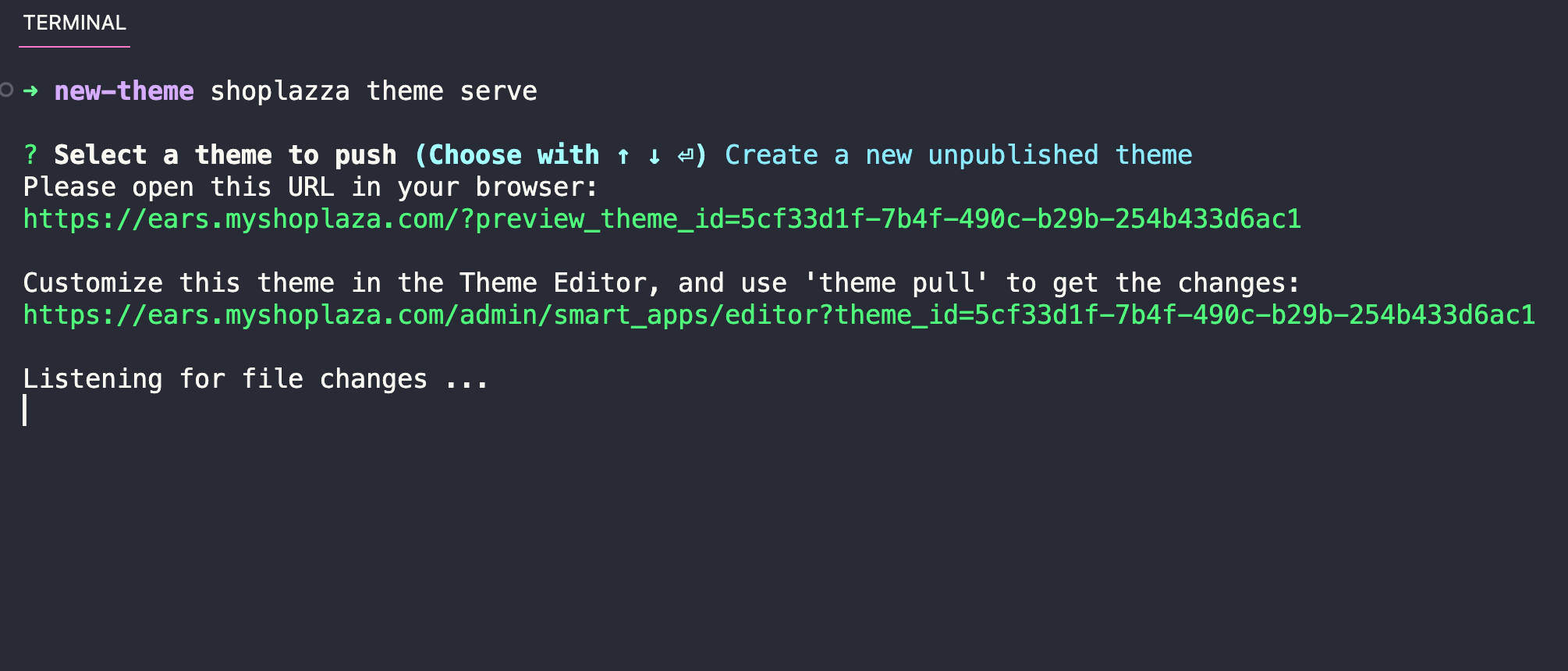
You can also use the serve to generate a preview link and a link to the theme editor for the development theme.
Step 4: Push your theme
If you want to share a permanent link to your theme, update the code of an existing theme, or prepare for your theme to be published, then push your theme code to Shoplazza using the theme push command.
shoplazza themes push --theme-id <THEME_ID>
In a terminal, the CLI asks you to confirm before it overwrites the theme.
Step 5: Publish your theme
If you want to make your theme live on the store, then you can publish it using the theme publish command. Before you run this command, make sure that you've pushed all of your local changes to Shoplazza using the theme push command.
- Enter the following command:
shoplazza themes publish --params '{"theme_id":"<THEME_ID>"}'
The specified theme is published and becomes the active theme for the store.
Next steps
Creating or customizing a theme with Shoplazza CLI is only the first step in building your theme. Consider the following next steps:
Learn more about Shoplazza themes
- Explore the architecture of a theme. Learn more about the structure of a theme, and the role of each file and folder, in our architecture documentation.
Implement features
You can enable certain Shoplazza features or add functionality to your theme. Features fall into the following categories: