
Getting Started
The Getting Started guide for Theme Extension Development in this article is based on the use of the Shoplazza CLI (specifically the shoplazza te command).
Additionally, you can also create and develop extensions using the Shoplazza CLI (via the shoplazza app command). For more details, please refer to this documentation.
Theme Extension Development
Theme Extension is a way provided by Shoplazza to extend and customize theme pages. Developers can use Theme Extension to extend and customize theme pages.
Development Process
Install Shoplazza CLI:
npm install -g shoplazza-cliLog in to Developer Store
shoplazza login --store https\://{shopdomain}.myshoplaza.com/Create Extension:
shoplazza te createChoose the Extension type (Basic or Embed).
- Basic Extension: Allows adjusting the insertion position in the theme editor.
- Embed Extension: The insertion position is hardcoded in the Extension (recommended for pod developers).
Start Development:
cd your-project
shoplazza te serve
Note: Select a template to develop your theme and preview. After you choose the theme, there are 2 links shown below:
Two links will be displayed:
- The first link redirects to the theme editor, where you can enable the Extension and save the theme.
- The second link redirects to the storefront for preview.
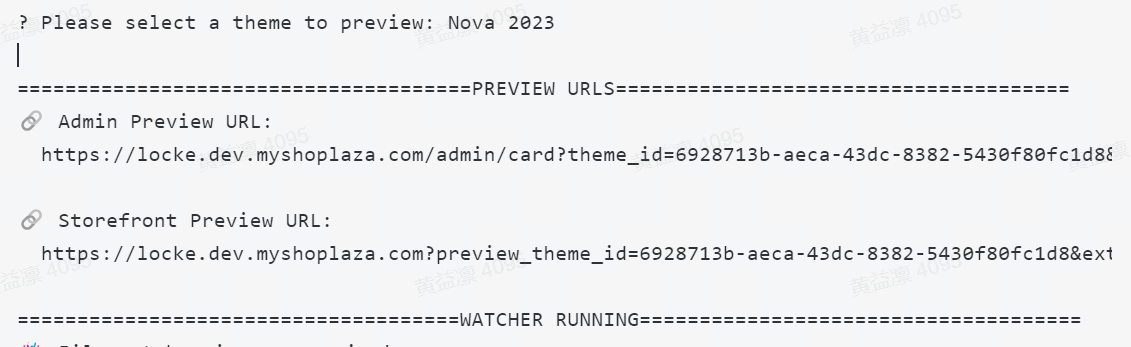
Preview Process:
- Access the Theme Editor Preview Link in the Store Backend:
- Open the browser and navigate to the theme editor preview link in the store backend.
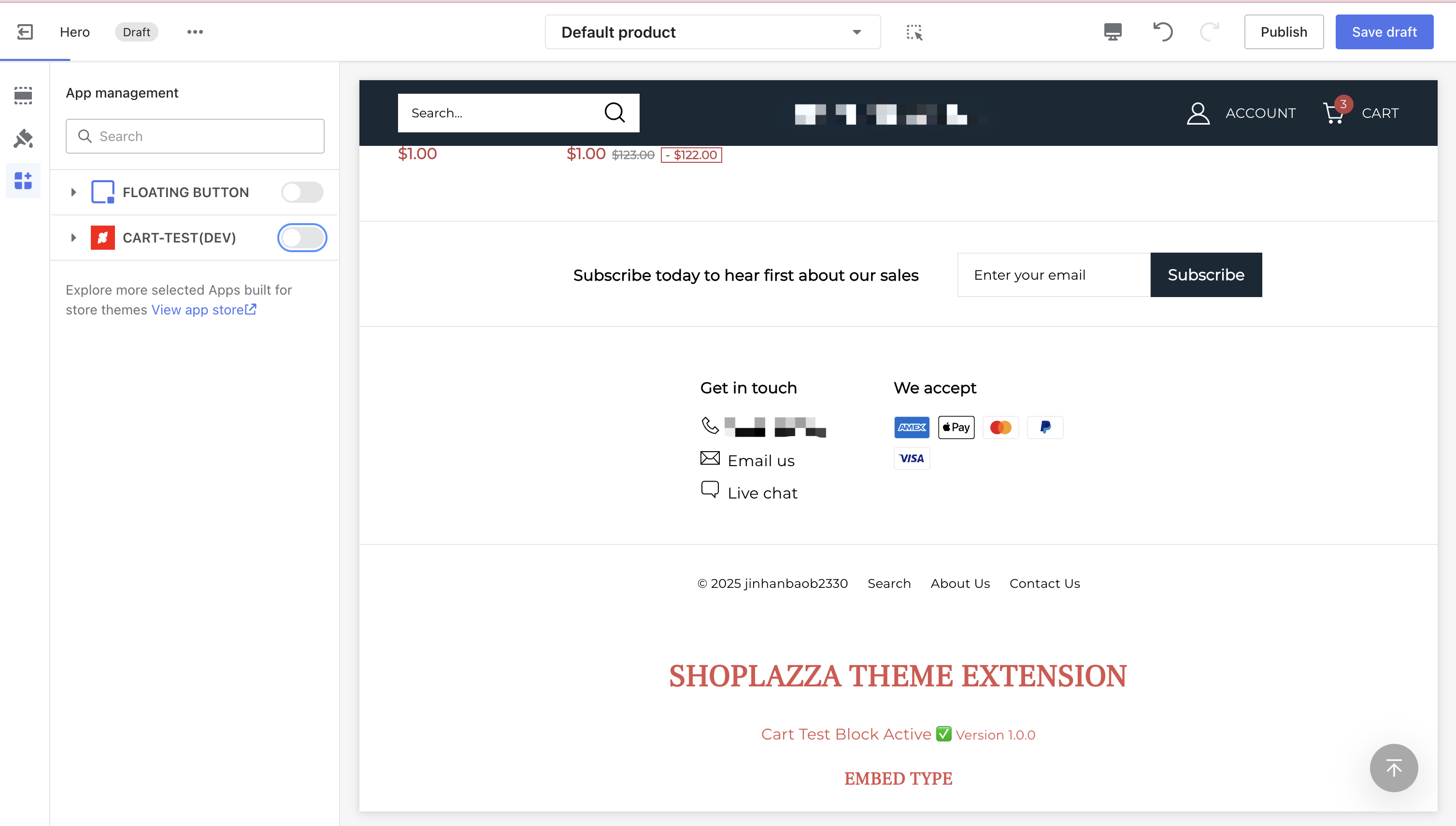
- Add Theme Extension in the Theme Editor:
Embed App: Go to App Management and enable the extension.
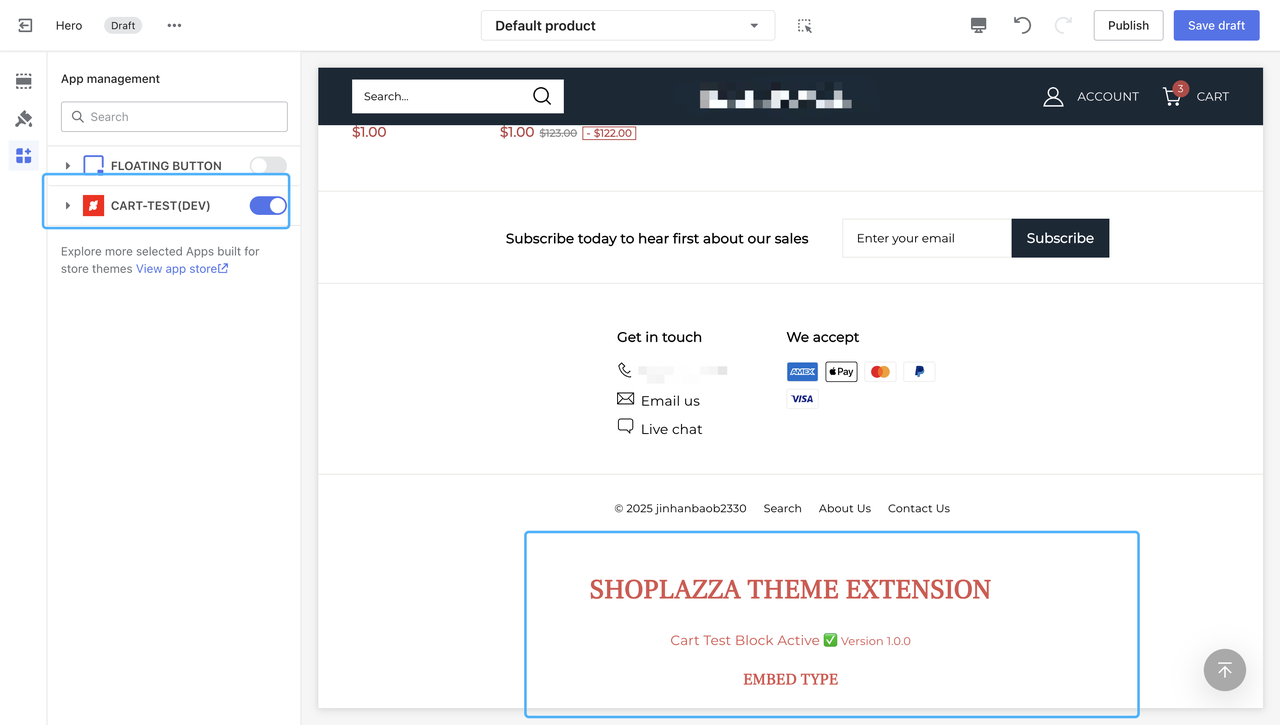
- Complete Configuration in the Theme Editor and Save Draft:
- Once the configuration in the theme editor is complete, save the draft. You can then access the storefront preview link to preview the changes.
Build Production Version:
shoplazza te build- Enter the App's client_id and client_secret obtained from the Shoplazza Partner backend.
Release Extension
shoplazza te releaseUpdated about 1 month ago