# cart
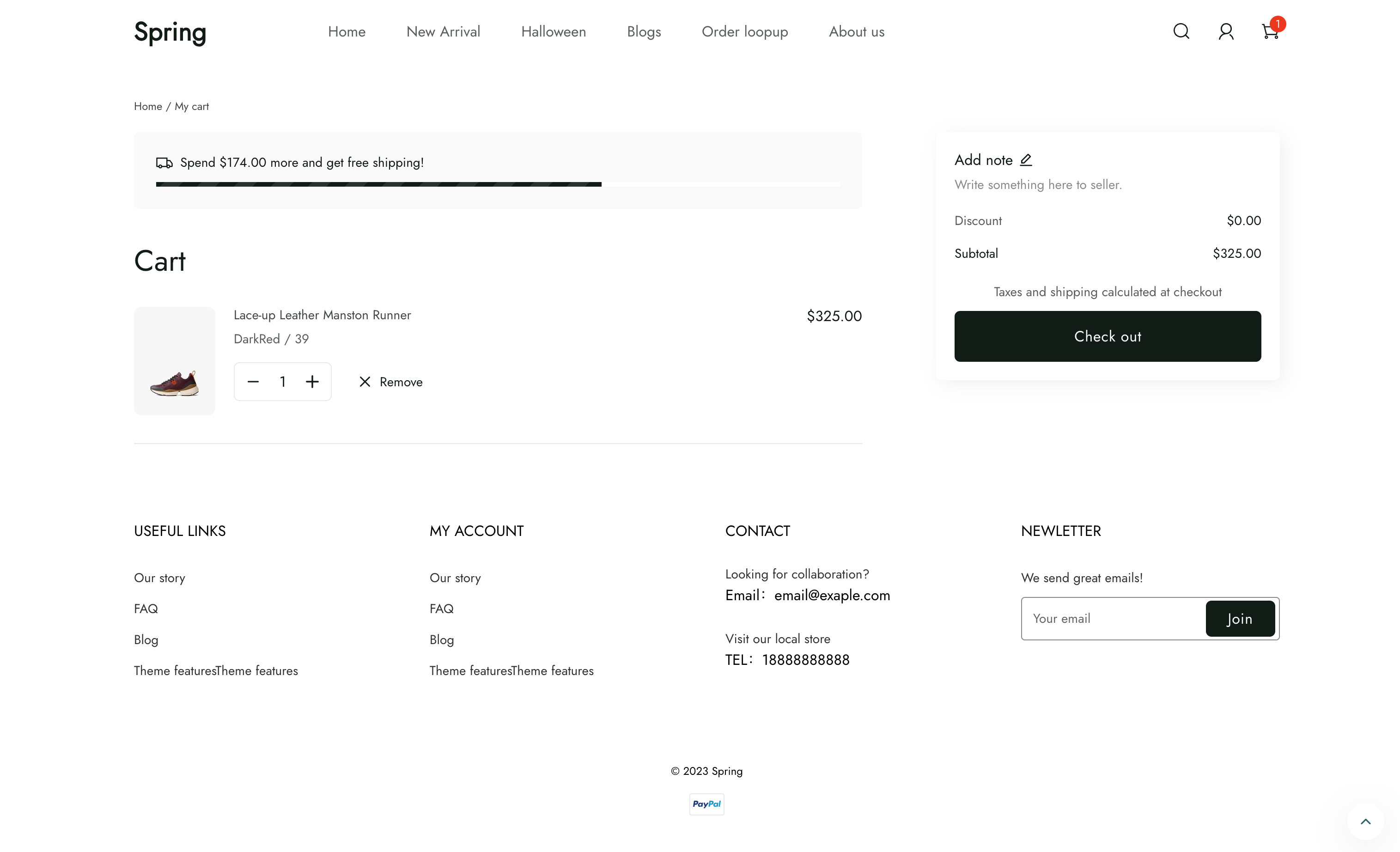
The `cart` template renders the `/cart` page, which provides an overview of the contents of a customer’s cart. The overview is typically shown in a table format with a row for each line item.
## Location
The `cart` template is located in the `templates` directory of the theme:
**Directory**
```text
└── theme
├── layout
├── templates
| ...
| ├── cart.liquid
| ...
...
```
## Content
You should include the [cart object](/docs/theme/architecture/templates/cart#the-cart-object) in your section inside the template.
### The cart object
You can access the Liquid [cart object](/docs/theme/architecture/templates/cart) to display the cart details.
## Usage
When working with the `cart` template, you should familiarize yourself with the following:
* [Using cart line items](/docs/theme/architecture/templates/cart#cart-line-items)
* [Letting customers proceed to checkout from the cart](/docs/theme/architecture/templates/cart#proceed-to-checkout)
* [Providing an option to remove line items from the cart](/docs/theme/architecture/templates/cart#remove-line-items-from-the-cart)
* [Updating line item quantities](/docs/theme/architecture/templates/cart#update-line-item-quantities)
* [Showing discounts](/docs/theme/architecture/templates/cart#show-cart-and-line-item-discounts)
* [Using cart notes](/docs/theme/architecture/templates/cart#support-cart-notes)
* [Displaying line item properties in the cart](/docs/theme/architecture/templates/cart#display-line-item-properties)
### Cart line items
A [line\_item](/docs/theme/references/liquid/objects/line_item) is a single line in a shopping cart that records which variant of a product was added, and the associated quantity. For example, if a customer adds both a `size medium` and `size large` of the same `t-shirt` to their cart, then each t-shirt has its own line item.
The `cart` template should include a table where each line item has a row:
* The [spz-cart](https://lessjs.shoplazza.com/latest/components/spz-cart/) component
**Example**
```liquid
{%- comment -%} line item info {%- endcomment -%}
```
### Proceed to checkout
To let customers proceed to checkout from the cart, you need to add a button anywhere, when the button is clicked, call the cart `checkout` action to checkout.
**Example**
```liquid
```
### Remove line items from the cart
You should give customers the option to remove a line item from their cart. You need to add a button, and when the button is clicked, call the cart `delete` action to remove a line item.
**Example**
```liquid
{%- comment -%} line item info {%- endcomment -%}
```
**tip**
Refer to the [Cart API](/docs/theme/references/ajax-api/cart) to learn more about changing the cart using JavaScript.
### Update line item quantities
You should give customers the option to update line item quantities in their cart. You can use [spz-quantity component](https://lessjs.shoplazza.com/latest/components/spz-quantity/) to change quantities.
**Example**
```liquid
{%- comment -%} line item info {%- endcomment -%}
```
### Show cart and line item discounts
Because discounts can apply to an entire cart or to individual line items, you should show discounts with the cart total summary and individual line item displays. To learn more about discounts and how to build discount displays, refer to [Discounts](/docs/theme/theme-features/pricing-and-payments/discounts).
### Support cart notes
You can give customers the option to include additional information with their order through the cart [notes](/docs/theme/architecture/templates/cart#cart-notes).
#### Cart notes
To capture a cart note, include an HTML input, commonly a `
```
### Display line item properties
When items are added to the cart, they can have [line item properties](/docs/theme/references/liquid/objects/line_item) included with them. You can display these properties by using the `parsedProperties` object encapsulated by the component on the cart page by looping through each property:
**Example**
```liquid