# Theme extension reference

> Reference for Shoplazza theme extensions: the shoplazza.extension.toml config, App Blocks, App Embed Blocks, snippets, schema, asset references, and locales.

# Theme Extension Reference

This page is a reference manual for Theme App Extensions: configuration file, block types, Snippets, Schema, asset references, and localization. For the development workflow, see [Create a Theme Extension](/docs/app/extensions/online-store/add-theme-extension).

## Configuration File (`shoplazza.extension.toml`)

Every Theme App Extension must have a `shoplazza.extension.toml` file at its root:

```toml
id = "617189634367044154"
name = "my-theme-app-extension"
type = "theme"
```

Field description:

| Field  | Description                                                                                   |
|--------|-----------------------------------------------------------------------------------------------|
| `id`   | The unique ID of the extension. Written by the CLI the first time `shoplazza app dev` or `shoplazza app deploy` pushes the extension. Do not modify manually. |
| `name` | The extension name, used in CLI operations and the admin panel.                               |
| `type` | Must be `"theme"`, which identifies it as a Theme App Extension.                             |

## App Block

An App Block injects inline content into a page section. Merchants can manually add App Blocks to supported sections in the theme editor's **Apps** area.

![Image](https://cnres.appracle.com/5432c74f9117adccdfe04317cef98a80.png)

**Use App Block when:**

- You need a feature that depends on dynamic data, such as product ratings or review displays.
- Merchants may want to adjust the position of the feature on the page.
- The feature needs to span the full width of the page.

:::note
App Blocks are **not** automatically inserted into a theme after app installation. Merchants must add them manually in the theme editor.
:::

### App Block Theme Requirements

For an App Block to work correctly, the theme's sections must support and render blocks of the `@app` type.

### Example: `app_block.liquid`

We'll walk through a complete example of an App Block that fetches and displays product rating metadata.

To allow the code to run correctly, you need to create `average_rating` metadata and set its value on the product in the admin:

1. Add the `average_rating` metadata field.  
   ![Image](https://cnres.appracle.com/fc31a43be7626d1d67e09c71577842ba.png)

2. Set the value of `average_rating` on the product.  
   ![Image](https://cnres.appracle.com/61cd550fd50f0bdf10300adc9dd1e96b.png)

3. In the store theme editor, add the theme extension to the product details section.  
   ![Image](https://cnres.appracle.com/e7ae51a91baf8db18e38b6f626ed2410.png)

Code (`blocks/app_block.liquid`):

```html
{% use "app_block.css" %}
{%- comment -%} Default to 0 when the product has no average_rating to avoid nil rendering errors {%- endcomment -%}
{% assign avg_rating = product.metafields.custom.average_rating | metafield_text | default: 0 | plus: 0 | round %}

<span style="color:{{ block.settings.color }}">
  {% render 'rating_stars', rating: avg_rating %}
</span>

{% if avg_rating >= 4 %}
  <div class="recommendation-text">
    <img src="{{ 'thumbs_up.svg' | asset_abs_url }}" style="width:20px; height:20px;">
    {{ 'i18n.ratings.recommendation_text' | t }}
  </div>
{% endif %}

{% schema %}
{
  "name": {
    "en-US": "Product Rating",
    "zh-CN": "商品评分"
  },
  "settings": [
    {
      "type": "color",
      "id": "color",
      "label": {
        "en-US": "Star Color",
        "zh-CN": "星星颜色"
      },
      "default": "#ff0000"
    }
  ]
}
{% endschema %}
```

`assets/app_block.css`

```css
.recommendation-text {
  color: green;
}
.myapp-floating-button-wrapper {
  color: red;
}
```

Visual result:
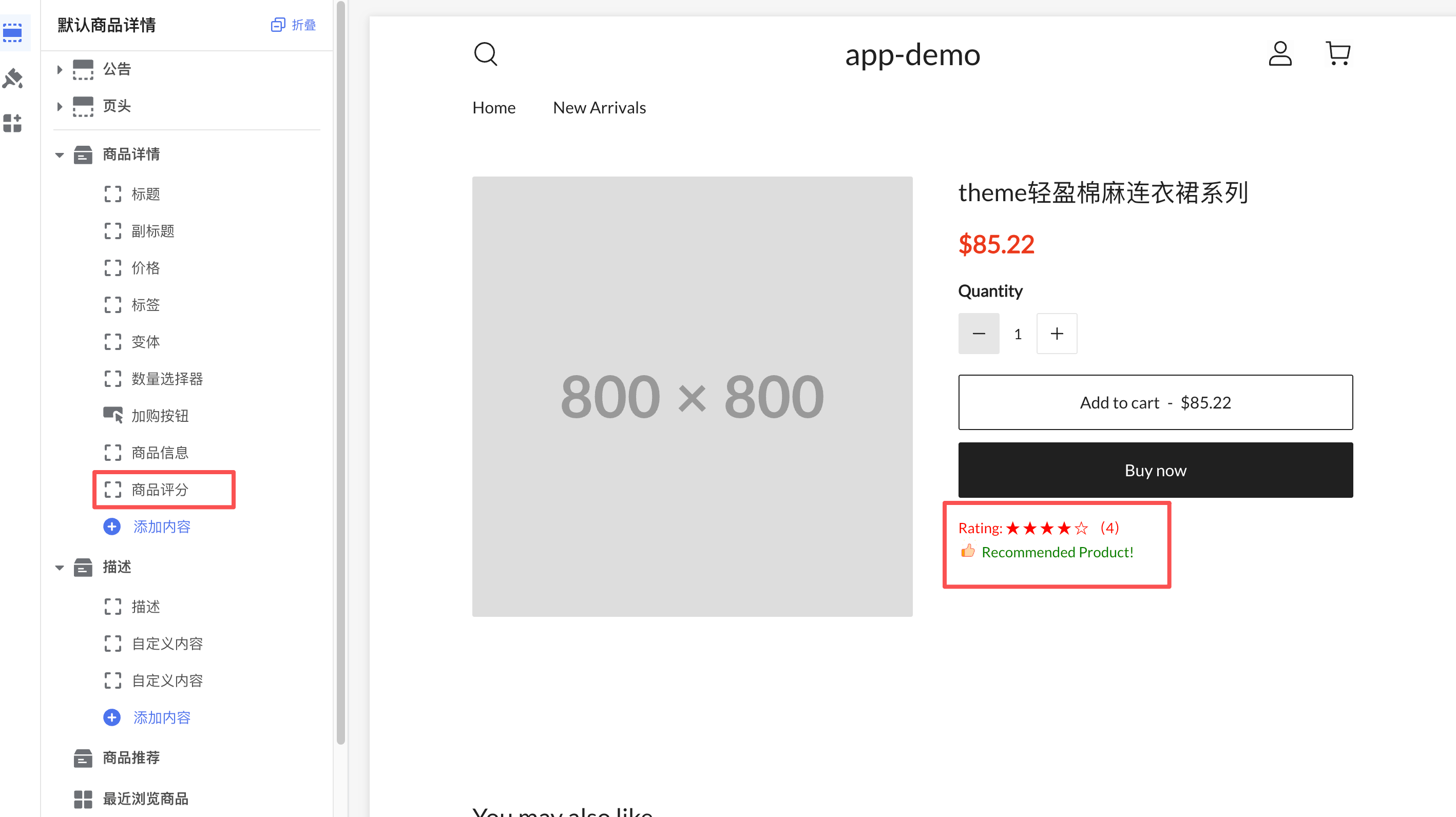
![Image](https://cnres.appracle.com/dd87007128299fbb0aa78a823fa83357.png)

**Code explanation:**

- `{% use "app_block.css" %}` – A Shoplazza-specific asset loader that includes CSS files from the `assets/` directory (see the "Asset Reference" section below).
- `block.settings.color` – Reads the `color` setting defined in the Schema. Merchants can change it in the theme editor.
- `{% render 'rating_stars', rating: avg_rating %}` – Includes the `snippets/rating_stars.liquid` snippet and passes the `rating` parameter.
- `{{ 'thumbs_up.svg' | asset_abs_url }}` – Gets the absolute URL of an image in the `assets/` directory.
- `{{ 'i18n.ratings.recommendation_text' | t }}` – Localization: reads the translated text from the corresponding file in `locales/`.
- When `target` is not set in the Schema, the block defaults to an App Block (works within a section).

## App Embed Block {#app-embed-block}

An App Embed Block is used when there is no dedicated UI area, or when you need to add floating / overlay elements. Shoplazza renders and injects the App Embed Block before the closing `</head>` or `</body>` tag in the HTML.

![Image](https://cnres.appracle.com/19c262e1278c489acecd5bd91e580b5f.png)

Specify the injection position using the `target` field in the Schema:

| `target` value | Injection position              |
|----------------|---------------------------------|
| `"body"`       | Before the `</body>` tag (most common) |
| `"head"`       | Before the `</head>` tag        |

:::note
App Embed Blocks are **disabled** by default after installation. Merchants must activate them manually in the theme editor under **Theme Editor > App Management**.
:::

**Use App Embed Block when:**

- You need floating buttons, chat bubbles, or other floating components.
- You need to add SEO meta tags, analytics, or tracking scripts.
- You need a global feature that applies to all pages.

### Example: `app_embed_block.liquid`

Below is a complete example of a floating button App Embed Block (`blocks/app_embed_block.liquid`). **Recommended:** Place CSS / JS in separate files inside the `assets/` directory and include them via Liquid filters, rather than inlining `<style>` / `<script>` tags in the Liquid file. This improves reusability, CDN caching, and prevents duplicate loading (see the "Asset Reference" section below).

```html
{{ 'floating_button.css' | asset_abs_url | stylesheet_tag }}
{{ 'floating_button.js' | asset_abs_url | script_tag }}

<div class="myapp-floating-button-wrapper">
  <button
    type="button"
    class="myapp-floating-button"
    style="
      background-color: {{ block.settings.background_color }};
      color: {{ block.settings.text_color }};
    "
  >
    <span>{{ block.settings.button_label }}</span>
  </button>
</div>

{% schema %}
{
  "name": {
    "en-US": "Floating Button",
    "zh-CN": "悬浮按钮"
  },
  "icon": "https://assets.shoplazza.com/oss/operation/a425c6e10e32f87a1e7271c9ed9347d8.svg",
  "target": "body",
  "settings": [
    {
      "type": "text",
      "id": "button_label",
      "label": {
        "en-US": "Button Label",
        "zh-CN": "按钮标签"
      },
      "default": "Help"
    },
    {
      "type": "color",
      "id": "background_color",
      "label": {
        "en-US": "Background Color",
        "zh-CN": "背景颜色"
      },
      "default": "#ff0000"
    },
    {
      "type": "color",
      "id": "text_color",
      "label": {
        "en-US": "Text Color",
        "zh-CN": "文字颜色"
      },
      "default": "#ffffff"
    },
    {
      "type": "text",
      "id": "link_url",
      "label": {
        "en-US": "Click URL",
        "zh-CN": "点击跳转链接"
      },
      "default": "https://www.shoplazza.dev"
    }
  ]
}
{% endschema %}
```

:::note
**About the `icon` field:** The example uses `assets.shoplazza.com` as a placeholder icon on Shoplazza's internal CDN. **Replace it with your own icon URL when publishing.**
:::

`assets/floating_button.css`

```css
.myapp-floating-button-wrapper {
  position: fixed;
  bottom: 24px;
  right: 24px;
  z-index: 9999;
}

.myapp-floating-button {
  display: inline-flex;
  align-items: center;
  justify-content: center;
  padding: 12px 16px;
  border-radius: 999px;
  font-size: 14px;
  font-weight: 600;
  text-decoration: none;
  box-shadow: 0 6px 18px rgba(0, 0, 0, 0.25);
  cursor: pointer;
  transition:
    transform 0.08s ease-out,
    box-shadow 0.08s ease-out;
}

.myapp-floating-button:hover {
  transform: translateY(-1px);
  box-shadow: 0 8px 24px rgba(0, 0, 0, 0.3);
}
```

`assets/floating_button.js`

```javascript
document.addEventListener('DOMContentLoaded', () => {
  const btn = document.querySelector('.myapp-floating-button');
  console.log('Floating button loaded, button element:', btn);
  if (!btn) return;

  btn.addEventListener('click', event => {
    console.log('Floating button clicked');
    // The redirect URL can be passed via the schema's link_url setting; hardcoded here for illustration only
    window.open('https://www.shoplazza.dev', '_blank');
  });
});
```

Preview:

![Image](https://cnres.appracle.com/0690078d34081012c277212bff26e220.png)

**Code explanation:**

- `"target": "body"`: Specifies an App Embed Block; content is injected before `</body>`. App Embed Block must explicitly set `target` in the Schema.

- `"icon"`: Icon displayed in the app embed list of the Theme Editor, using an absolute URL.

- `block.settings.button_label`, etc.: Reads the setting values configured by the merchant in the Theme Editor.

- **Resource loading:** CSS/JS is loaded via `asset_abs_url | stylesheet_tag` and `asset_abs_url | script_tag`. If you must inline `<style>` / `<script>` in Liquid, wrap the JS logic in an IIFE to avoid global variable pollution—but it's recommended to use external files for caching and reusability.

## Snippets

The `snippets/` directory stores reusable Liquid code snippets that can be referenced in multiple blocks to avoid duplication.

### Example: snippets/rating_stars.liquid

```text
{%- if rating < 0 -%}
  {%- assign safe_rating = 0 -%}
{%- elsif rating > 5 -%}
  {%- assign safe_rating = 5 -%}
{%- else -%}
  {%- assign safe_rating = rating -%}
{%- endif -%}
{%- assign blank_stars = 5 | minus: safe_rating -%}
<span aria-label="{{ safe_rating }}/5 stars">
  {{ 'i18n.ratings.star_label' | t }}:
  {%- for i in (1..safe_rating) -%}
    ★
  {%- endfor -%}
  {%- for i in (1..blank_stars) -%}
    ☆
  {%- endfor -%}
</span>
```

:::note
Use `if / elsif` to clamp `rating` between 0 and 5 (Shoplazza Liquid does not provide `at_least` / `at_most` clamp filters; see [Math filters](/docs/theme/references/liquid/filters/math-filters) for available math filters), preventing rendering issues when the rating is negative or exceeds 5. The outer `<span aria-label>` provides readable text for screen readers.
:::

Reference this snippet in a block:

```text
{% render 'rating_stars', rating: avg_rating %}
```

Or:

```text
{% include 'rating_stars' %}
```

**Difference between `{% render %}` and `{% include %}`:**

| | `{% render %}` | `{% include %}` |
|---|---|---|
| Variable scope | Independent scope; does not inherit external variables (must be passed explicitly as parameters) | Shares the external variable scope |
| Parameter passing | Passes via `with`, `for`, or named parameters | Directly accesses all external variables |
| Recommended scenario | Snippets that need explicit isolation and high reusability | Snippets that need to access contextual variables |

## Schema Configuration

Every block's Liquid file must end with a `{% schema %} ... {% endschema %}` block, which defines the block’s name, type, and configurable settings. Each file can contain only one `{% schema %}` block.

### Top-level Properties

| Property | Type | Required | Description |
|---|---|---|---|
| `name` | Object | Yes | Block name displayed in the Theme Editor. **Must provide both `en-US` and `zh-CN` languages**. Should not exceed 25 characters. |
| `target` | String | Required for App Embed Block | Injection position for the block. App Embed Block must be set to `"body"` or `"head"`; App Block does not need this. |
| `icon` | String | No | Icon displayed for the block in the Theme Editor, using an absolute URL. Applies only to App Embed Block. |
| `settings` | Array | No | List of customizable settings for the merchant, displayed when the block is selected in the Theme Editor. |
| `presets` | Array | No | Default configuration |
| `tag` | String | No | If set, wraps the block output with the specified HTML tag; defaults to `div` if not set. |
| `class` | String | No | Additional CSS class name added to the wrapper tag. |

### Multi-language format for `name`

`name` must be configured as a multi-language object containing `en-US` and `zh-CN`:

```json
{
  "name": {
    "en-US": "Product Rating",
    "zh-CN": "商品评分"
  }
}
```

### Settings Configuration

Structure of each setting object:

```json
{
  "type": "color",
  "id": "color",
  "label": {
    "en-US": "Star Color",
    "zh-CN": "星星颜色"
  },
  "default": "#ff0000"
}
```

| Field | Required | Description |
|---|---|---|
| `type` | Yes | Control type of the setting (see table below) |
| `id` | Yes | Unique identifier of the setting, accessed in Liquid via `block.settings.<id>` |
| `label` | Yes | Label displayed in the Theme Editor, **must provide both `en-US` and `zh-CN`** |
| `default` | No | Default value of the setting |

**Common `type` values:**

| type | Description | Example default value |
|---|---|---|
| `text` | Single-line text input | `"Default text"` |
| `textarea` | Multi-line text input | `"Multi-line text"` |
| `color` | Color picker | `"#ff0000"` |
| `select` | Dropdown selection (requires `options` field) | `"option_value"` |
| `checkbox` | Checkbox | `true` |
| `range` | Slider range selection (requires `min`, `max`, `step` fields) | `50` |
| `image_picker` | Image picker, allows merchants to upload or select images from the admin | — |

**Access settings in Liquid:**

```text
{{ block.settings.color }}
{{ block.settings.button_label }}
{{ block.settings.background_color }}
```

## Resource References

### Method 1: `{% use %}` tag (recommended for loading CSS/JS)

`{% use %}` is a Shoplazza Liquid tag that loads CSS or JS files from the `assets/` directory in a block:

```text
{% use "app_block.css" %}
{% use "app_block.js" %}
```

**Features:**

- If the same file is referenced by multiple blocks on the page, it is loaded only once, avoiding duplication.

- CSS files are automatically injected as `<link>` tags in the `<head>`.

- JS files are loaded asynchronously.

### Method 2: `asset_abs_url` filter (for referencing images and other paths)

For dynamically referencing resource paths in HTML attributes (e.g., image `src`), use the `asset_abs_url` filter to get the absolute URL of the resource:

```text
<img src="{{ 'thumbs_up.svg' | asset_abs_url }}">
```

Combine with other filters:

```text
{{ 'app_embed_block.css' | asset_abs_url | stylesheet_tag }}
{{ 'app_embed_block.js' | asset_abs_url | script_tag }}
```

:::note
When referencing resources in the `assets/` directory within a Theme App Extension, you must use `asset_abs_url` instead of `asset_url` or `shoplaza_asset_url` used in theme development. `asset_abs_url` generates a unique path based on the extension ID and file hash, preventing naming conflicts between different extensions.
:::

:::warning File naming restrictions
Resource files (images, CSS, JS, etc.) referenced via `asset_abs_url` **must not contain hyphens `-`**. Use underscores `_` instead, e.g., `thumbs_up.svg`, `app_block.css`. Otherwise, the remote resource URL cannot be generated.
:::

**Applicable scenarios for both methods:**

| Scenario | Recommended method |
|---|---|
| Load CSS/JS files in a block | `{% use "app_block.css" %}` |
| Reference images or other resource paths in HTML attributes | `{{ 'thumbs_up.svg' \| asset_abs_url }}` |
| Dynamically generate `<link>` or `<script>` tags | `{{ 'app_block.css' \| asset_abs_url \| stylesheet_tag }}` |

## Internationalization (locales)

The `locales/` directory stores storefront translation files for multiple languages. File naming format: `{language_code}.json` (e.g., `en-US.json`, `zh-CN.json`, `zh-TW.json`). The platform supports 15 locales (including Taiwan) and 14 country-specific language files.

### File format

**locales/en-US.json:**

```json
{
  "ratings": {
    "star_label": "Rating",
    "recommendation_text": "Recommended Product!"
  }
}
```

**locales/zh-CN.json:**

```json
{
  "ratings": {
    "star_label": "评分",
    "recommendation_text": "推荐产品!"
  }
}
```

### Using translations in Liquid

Use the `t` filter to reference translation keys. Keys use dot-separated paths with the `i18n.` namespace prefix:

```text
{{ 'i18n.ratings.star_label' | t }}
{{ 'i18n.ratings.recommendation_text' | t }}
```

The platform automatically loads the corresponding translation text from the language file based on the current store language.

:::note
Merchants cannot edit the storefront multilingual text of a Theme App Extension in the Theme Editor; these texts are maintained exclusively by developers in the `locales/` files.
:::
